Step 1. What ChessMethod gives your academy
ChessMethod is the curriculum, certification and learner-management platform for chess coaches and academies. This guide follows the real screens in the order you will meet them.
What you get
- Curriculum. Seven levels from Foundation (under 600) to Expert (1600+), with every lesson and activity playable exactly as a learner experiences it.
- Certification levels. Learners sit a timed, webcam-proctored exam for each level and earn a certificate that anyone can verify online.
- Learner management. Invite learners, decide which levels each one can see, and follow their progress, mock exams and results.
- Branded certificates. Your academy name, logo and up to two signatories appear next to ChessMethod's on the certificates of learners who unlock levels through you.
- Earnings. You earn a share of every level your learners buy.
How the money works
- Learners buy levels. Each level has a price in the learner's own currency. You can set your own price for every level; otherwise the default price applies. Learners outside India never see rupees: they see their own currency, or US dollars.
- You earn a share. By default you earn 80% of what a learner pays for a level and ChessMethod keeps 20%. Payment-provider fees come out of ChessMethod's part, not yours. If ChessMethod agreed a different rate with you, your Pricing page shows your exact split.
- Each level uses one level credit. You prepay credits in advance. Every level that a learner linked to you obtains uses one credit from your balance. Joining you, or you making a level available to someone, costs nothing.
Learner pays for a level
Split at the moment of purchase
You earn 80%
ChessMethod keeps 20%
1 level credit is used from your balance
The path in one line
Sign up, get access, complete your profile and check your billing country, buy level credits, set up payouts, set your prices, create a learner code, brand your academy, invite learners. A one-page checklist is at the end of this guide.
Step 2. Create your coach account and get access
Everyone starts with one account. Coaches pick the coach option at sign-up, then activate their access.
Create your account
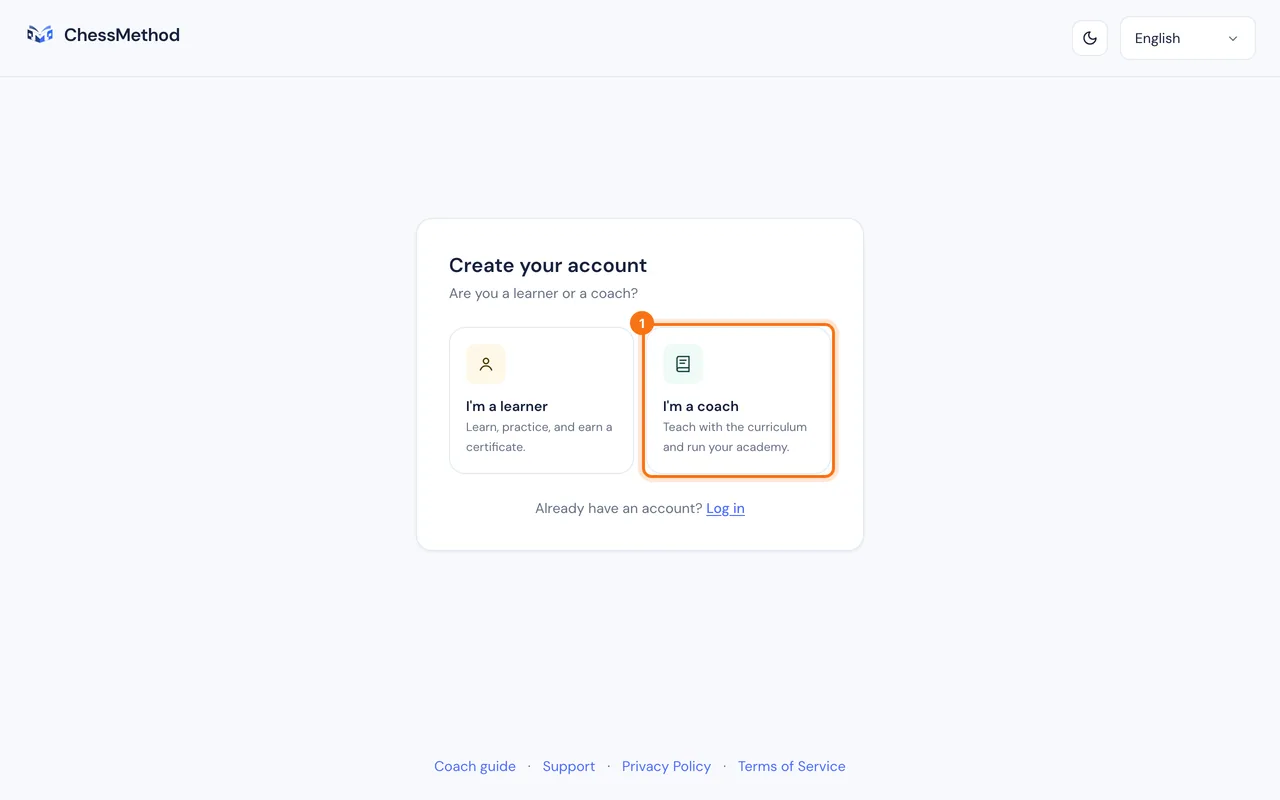
- Open chessmethod.io and press Sign up.
- Choose I'm a coach. (I'm a learner creates a learner account instead.)
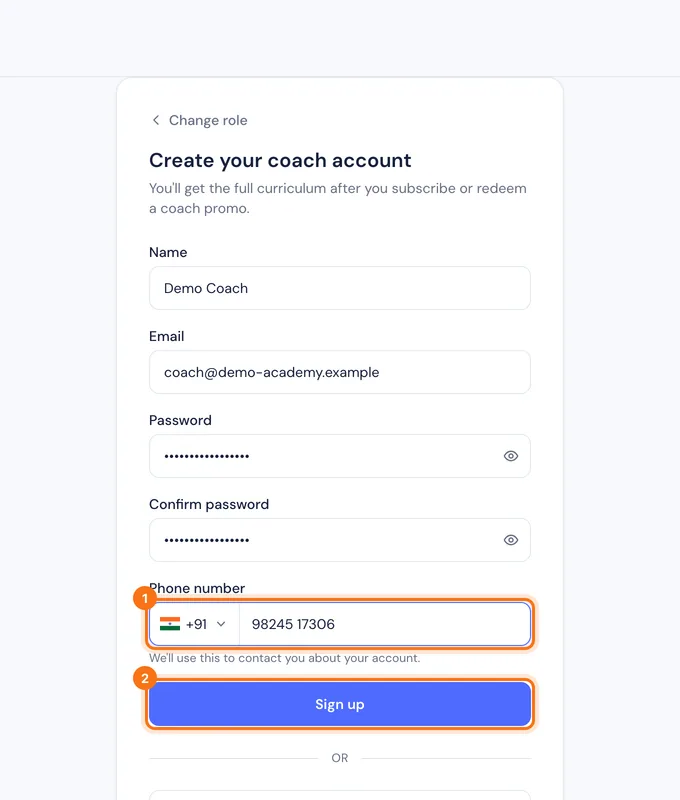
- Enter your name, your email and a password of at least 8 characters, confirm the password and enter your mobile phone number.
- Press Sign up. You can also press Continue with Google, or Continue with Apple where it is shown. Choose I'm a coach first so the account is created as a coach account.
Activate your coach access
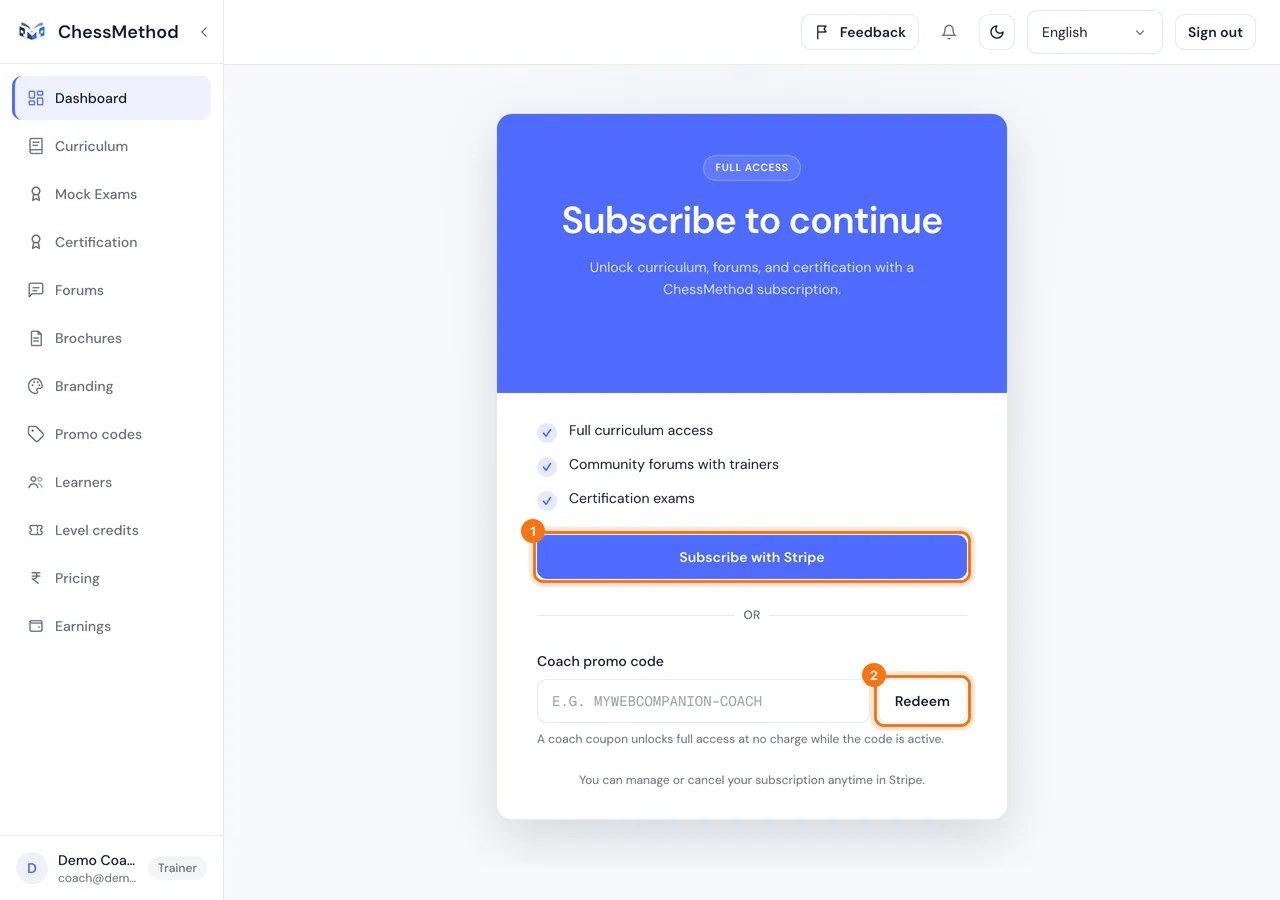
A new coach account has to be activated before you can use the curriculum, buy level credits, set prices, create codes or manage learners. Until then you can open every page, but those actions are refused. There are four ways to get access:
- Subscribe with Stripe. Press Subscribe on the dashboard. The price and billing period are shown on the screen, you pay by card through Stripe, and you can manage or cancel the subscription at any time in Stripe.
- Coach promo code. If ChessMethod gave you a coach coupon, type it into Coach promo code and press Redeem. It gives full access at no charge while the code is active.
- A coach link from ChessMethod. A link that looks like
/join/coach/…gives permanent free access. Sign up through it, or open it while you are signed in and press Activate permanent coach access. - Chesslang One membership. Existing members can press Continue with Chesslang One on the same screen (shown where it is available) to sync their membership.
Step 3. Complete your profile and check your billing country
Your profile holds your photo, name and phone number. Your billing country decides your currency and payment provider: what you pay for level credits, and where payouts can go. Check it before you buy anything.
Which currency applies
| Billing country | Currency | Payment provider |
|---|---|---|
| India | Indian rupee (INR) | Razorpay |
| United Arab Emirates | UAE dirham (AED) | Stripe |
| Malaysia | Malaysian ringgit (MYR) | Stripe |
| Singapore | Singapore dollar (SGD) | Stripe |
| Euro-area countries, for example Ireland, France, Germany, Italy, Spain, the Netherlands | Euro (EUR) | Stripe |
| Every other country, for example the United States, United Kingdom, Canada, Australia | US dollar (USD) | Stripe |
- Billing country
- India
- Currency
- Indian rupee (INR)
- Payment provider
- Razorpay
- Billing country
- United Arab Emirates
- Currency
- UAE dirham (AED)
- Payment provider
- Stripe
- Billing country
- Malaysia
- Currency
- Malaysian ringgit (MYR)
- Payment provider
- Stripe
- Billing country
- Singapore
- Currency
- Singapore dollar (SGD)
- Payment provider
- Stripe
- Billing country
- Euro-area countries, for example Ireland, France, Germany, Italy, Spain, the Netherlands
- Currency
- Euro (EUR)
- Payment provider
- Stripe
- Billing country
- Every other country, for example the United States, United Kingdom, Canada, Australia
- Currency
- US dollar (USD)
- Payment provider
- Stripe
A currency only applies once ChessMethod has switched it on. If yours is not on yet, you see prices in US dollars, and the buttons that need a payment are disabled with the message Payments in US dollars open soon. ChessMethod will let you know. (with the name of your currency). Nothing is charged until payments in that currency open. The current state is listed in step 1.
Where to set your billing country
- Open Profile from the bottom of the sidebar. (This page used to be called Account.)
- Find the Billing country card and pick your Country. The line under it confirms the currency, for example "Prices and payments for your account are in USD."
- Press Save.
The rest of your profile
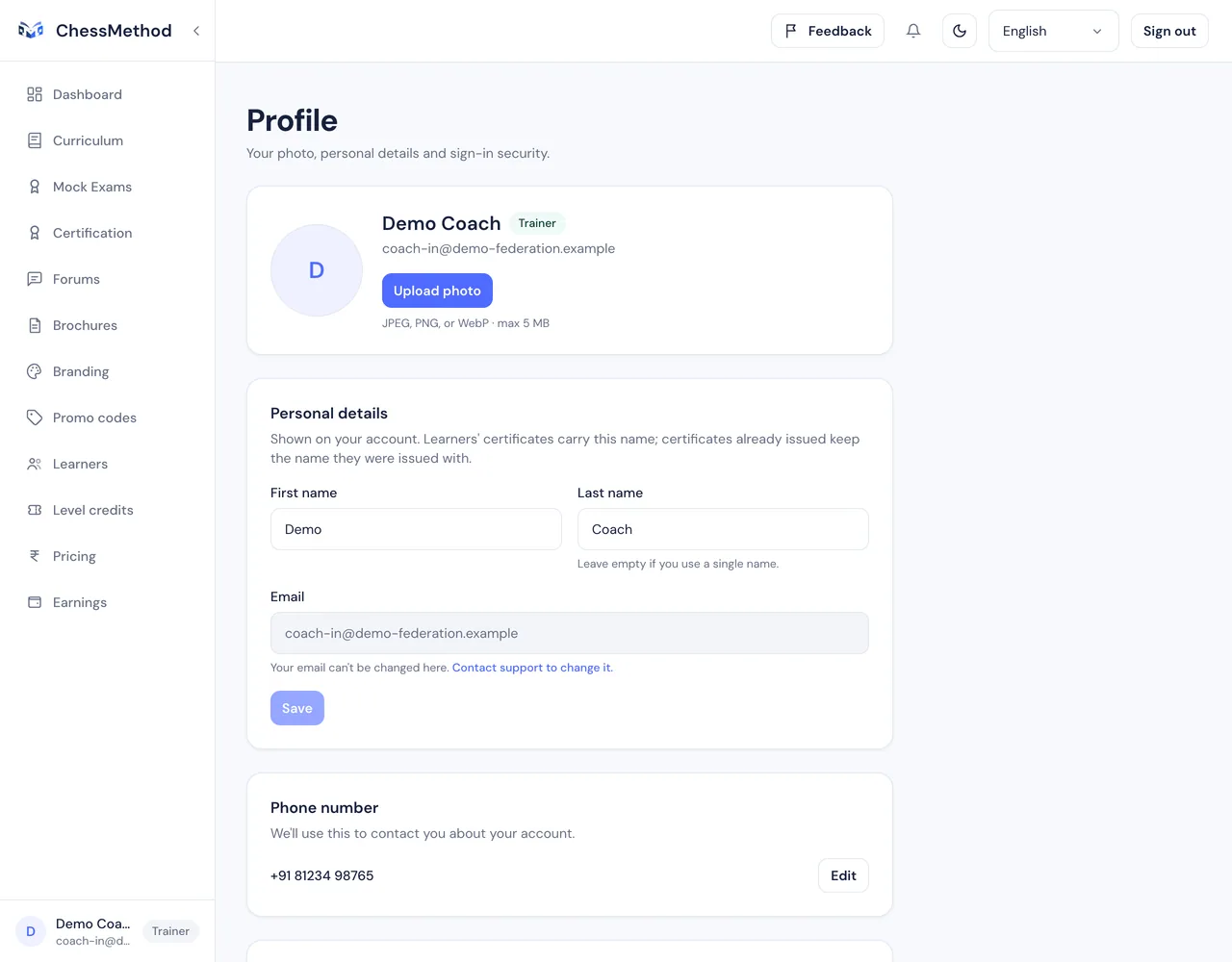
- Photo. Press Upload photo (later Change photo or Remove photo). Your photo is shown on your account.
- Personal details. Your First name and Last name (leave the last name empty if you use a single name). Your email address is shown but cannot be changed here: contact support to change it.
- Phone number. Required for coaches, with its country flag. ChessMethod uses it to contact you about your account.
- Password. Enter your current password and a new one (at least 8 characters). If you do not remember it, press Send me a password reset email; the link expires in 30 minutes. If you signed up with Google or Apple and never set a password, press Email me a link to set a password so you can also sign in with your email.
- Delete account. At the bottom of the page. This permanently deletes your account and personal data and cannot be undone, so you are asked to type DELETE and your password.
Step 4. Buy level credits
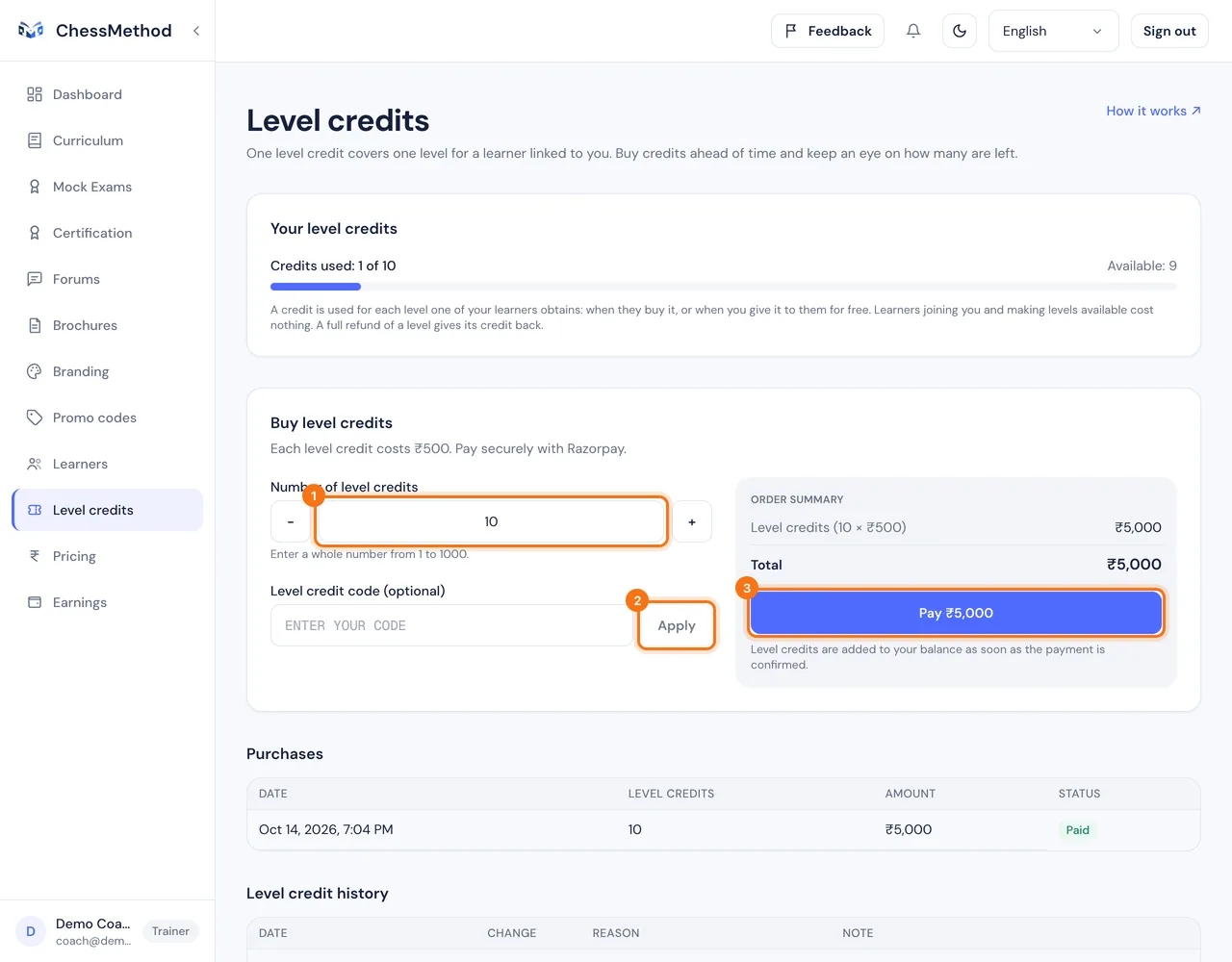
Level credits cover the levels your learners take. One credit is one level: a learner who buys three levels uses three credits.
How to buy
- Open Level credits in the sidebar (or press Buy credits on your dashboard).
- Under Buy level credits, set the Number of level credits: any whole number from 1 to 1,000. Type it, or use + and -.
- Check the Order summary. If ChessMethod gave you a Level credit code, enter it and press Apply to see the discount.
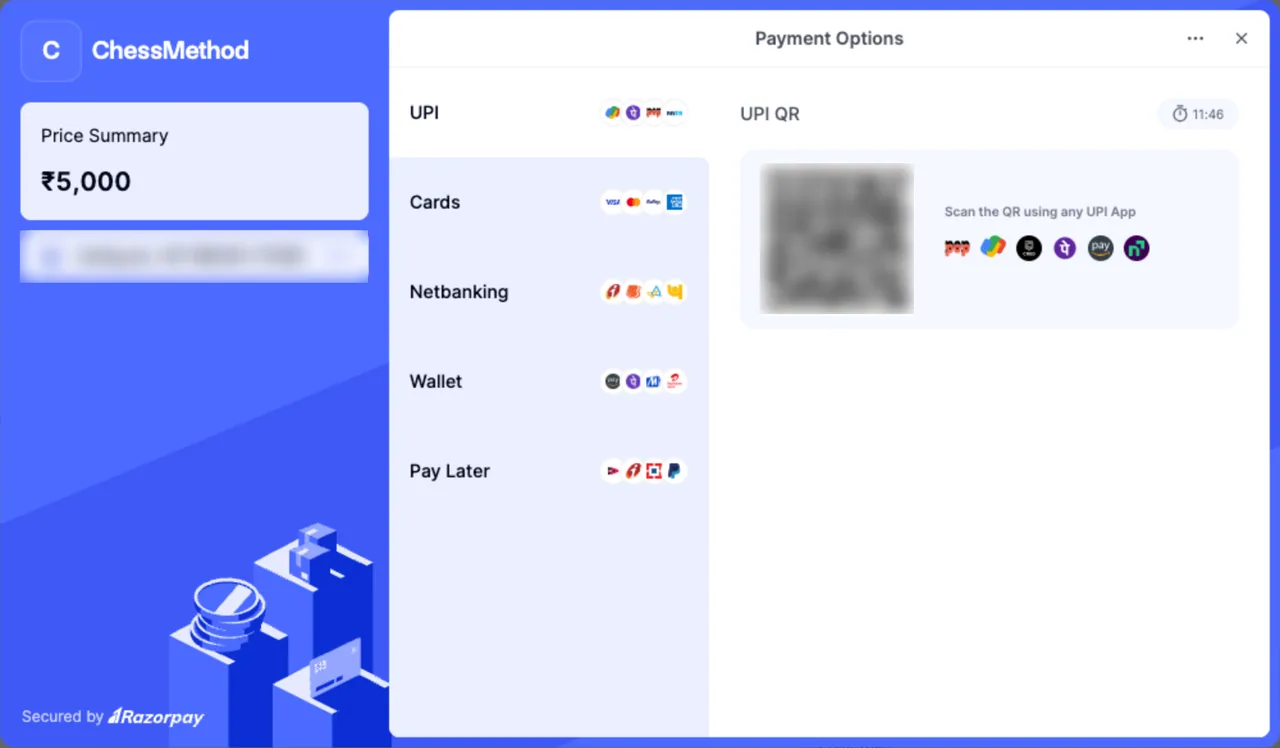
- Press Pay. In India (INR), Razorpay Checkout opens over the page: enter your mobile number and email, then pay with one of the methods it offers, such as UPI, card or netbanking. In every other currency you are taken to Stripe Checkout, which takes cards only (Apple Pay and Google Pay appear as card options on supported devices). If payments in your currency are not switched on yet, the button is disabled and says Payments in US dollars open soon (or your currency); nothing is charged.
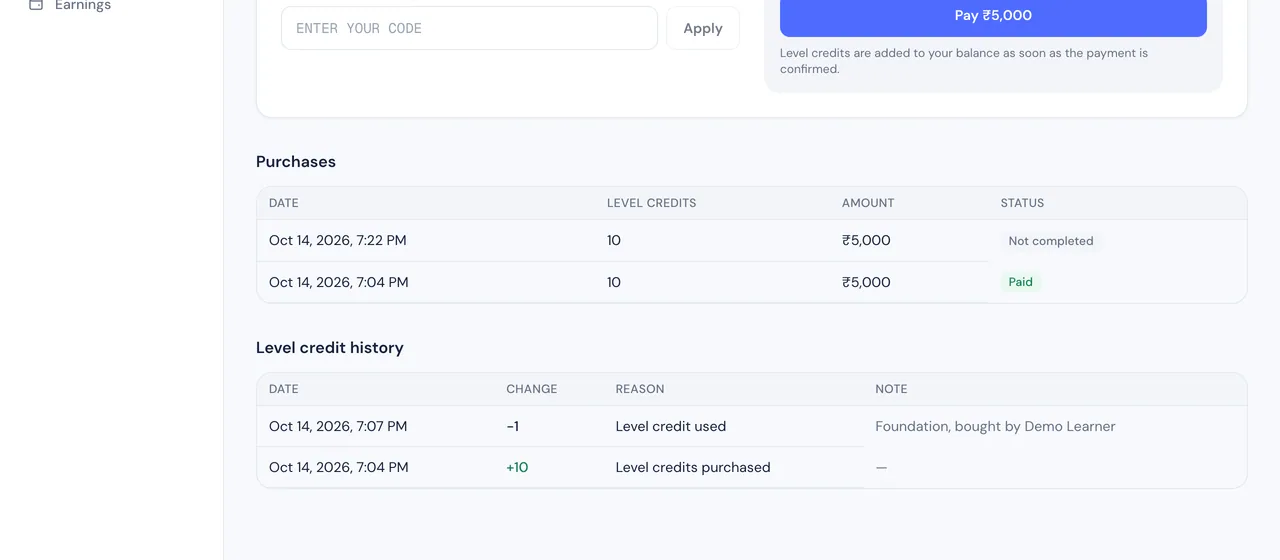
- When the payment is confirmed your balance updates by itself.
Step 5. Get paid: set up payouts
Your share of every level your learners buy is recorded on the Earnings page. How it reaches your bank account depends on the currency the learner paid in.
Who sets up what
| Learner paid in | How you are paid | What you do |
|---|---|---|
| INR (Razorpay) | ChessMethod links a Razorpay account for you. | Wait for ChessMethod to contact you, then complete the identity and bank details Razorpay asks for. |
| USD, EUR, AED, MYR, SGD (Stripe) | Directly to your Stripe account when you are connected. | Set up payouts with Stripe yourself on the Earnings page (below). |
- Learner paid in
- INR (Razorpay)
- How you are paid
- ChessMethod links a Razorpay account for you.
- What you do
- Wait for ChessMethod to contact you, then complete the identity and bank details Razorpay asks for.
- Learner paid in
- USD, EUR, AED, MYR, SGD (Stripe)
- How you are paid
- Directly to your Stripe account when you are connected.
- What you do
- Set up payouts with Stripe yourself on the Earnings page (below).
Stripe payouts (everything except INR)
- Open Earnings in the sidebar.
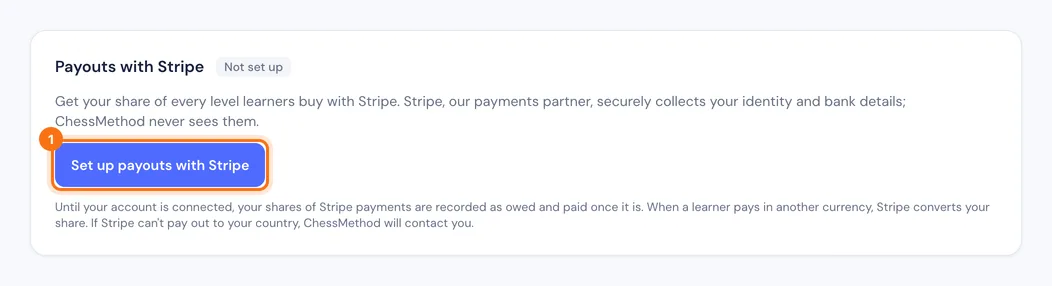
- On the Payouts with Stripe card (status Not set up) press Set up payouts with Stripe.
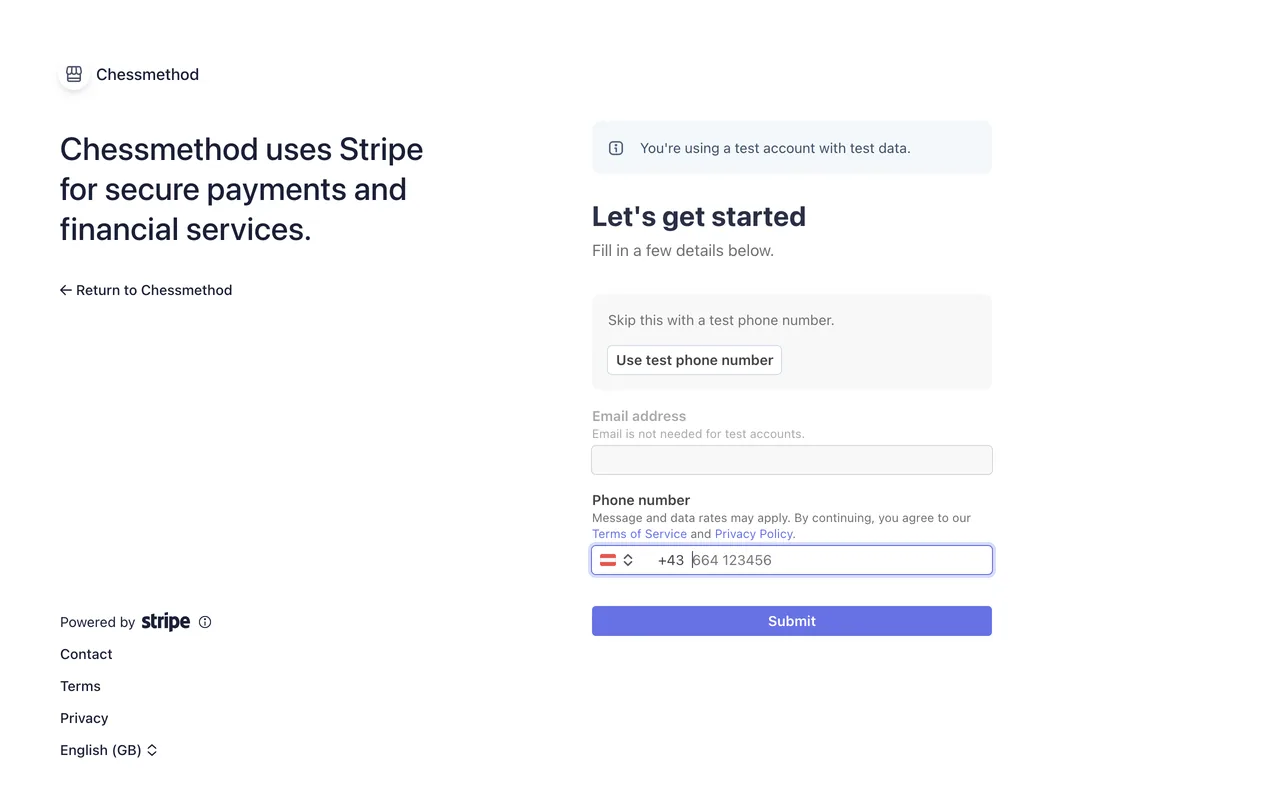
- Stripe's own secure page opens. Stripe asks you to confirm your contact details and, as an individual, to give your name, date of birth, address and any ID number your country requires, plus the bank account that should receive your money. The exact questions depend on your country. ChessMethod never sees these details.
- Finish on Stripe. It sends you back to Earnings with a message about your status.
What the status means
- Not set up. You haven't started. Press Set up payouts with Stripe.
- Setup in progress. Stripe still needs details from you, or is verifying what you sent. Press Continue Stripe setup to carry on where you stopped. If Stripe is only verifying, the page updates by itself when it finishes.
- Connected. You are ready. Press Open Stripe dashboard to see your payouts and bank details in Stripe.
- Needs attention. Stripe paused payouts to the account. Press Fix in Stripe and follow what Stripe asks for. Your earnings keep being recorded in the meantime.
Where Stripe payouts are available
Stripe payouts work for coaches in the United States, the United Kingdom, Canada, Switzerland and the European Economic Area (the EU countries plus Iceland, Liechtenstein and Norway). In other countries, such as the UAE, Malaysia and Singapore, the card says that Stripe can't pay out to your country from ChessMethod's account. Your earnings from Stripe payments are then recorded as owed, and ChessMethod pays them to you by bank transfer (see "When you get paid").
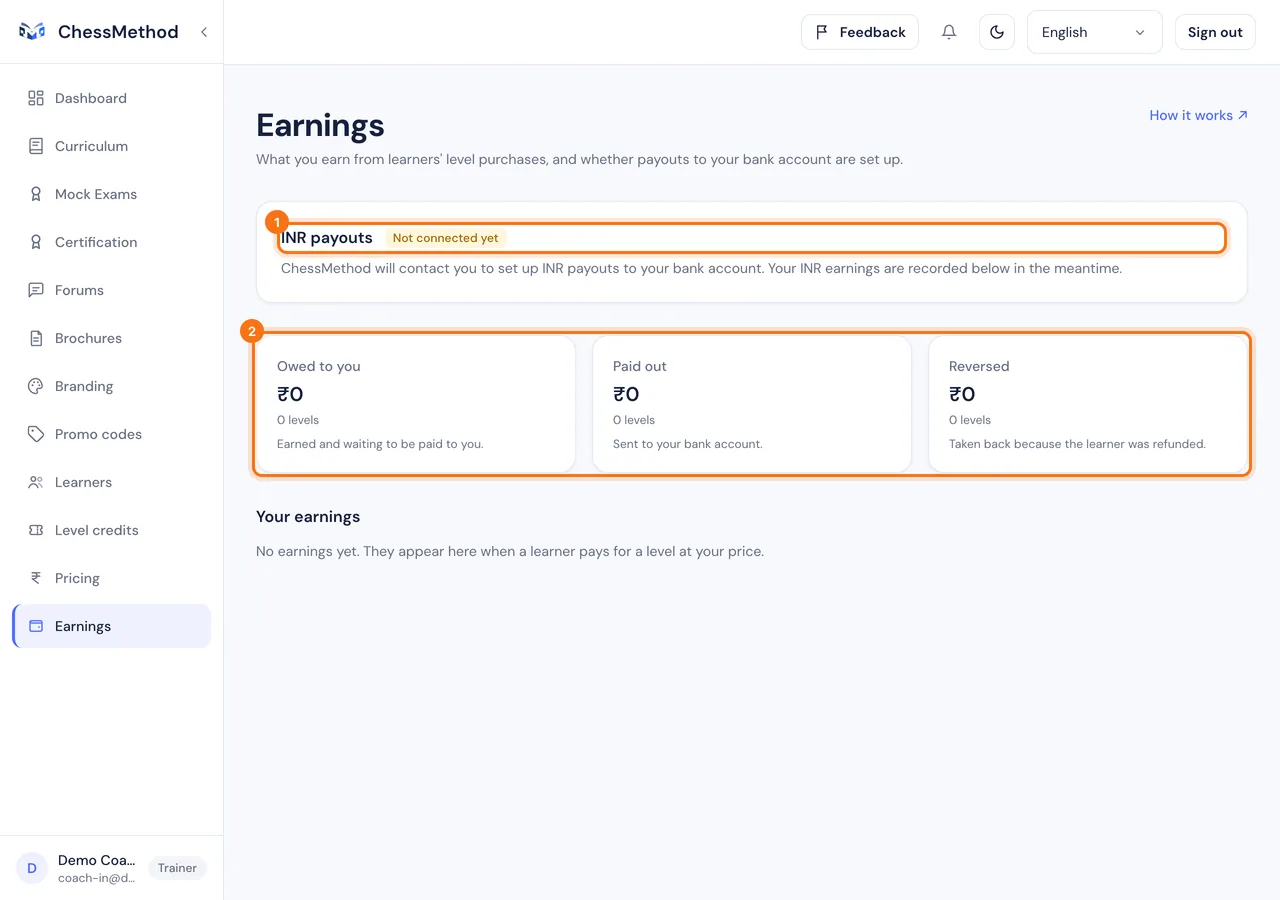
India (INR payouts)
The INR payouts card shows Not connected yet and says that ChessMethod will contact you to set up INR payouts to your bank account. Razorpay verifies the account holder and the bank account, so expect to be asked for identity (KYC) and bank-account details. When it is done the card turns to Payouts connected. You do not set this up inside ChessMethod.
When you get paid
- Automatically at the time of purchase when your payout account is active. The earning shows as Paid out.
- Later when it is not active yet. The earning is recorded as Owed and ChessMethod pays it once your account is connected.
- By bank transfer from ChessMethod. When Stripe cannot pay your country, or you have no payout account, ChessMethod pays your owed shares by bank transfer and records the payment. The row then shows Paid out with Paid by bank transfer on the date and the bank Reference:, and the amount moves from Owed to you to Paid out. Keep the reference to match it with your bank statement.
- Refunds. If a learner is fully refunded, a share that was not yet paid is cancelled and shows as Reversed. A share already paid out is recovered by ChessMethod through the payment provider and then shows as Reversed. A partial refund does not change your share.
Step 6. Set your level prices
You decide what your learners pay for each level.
How to set prices
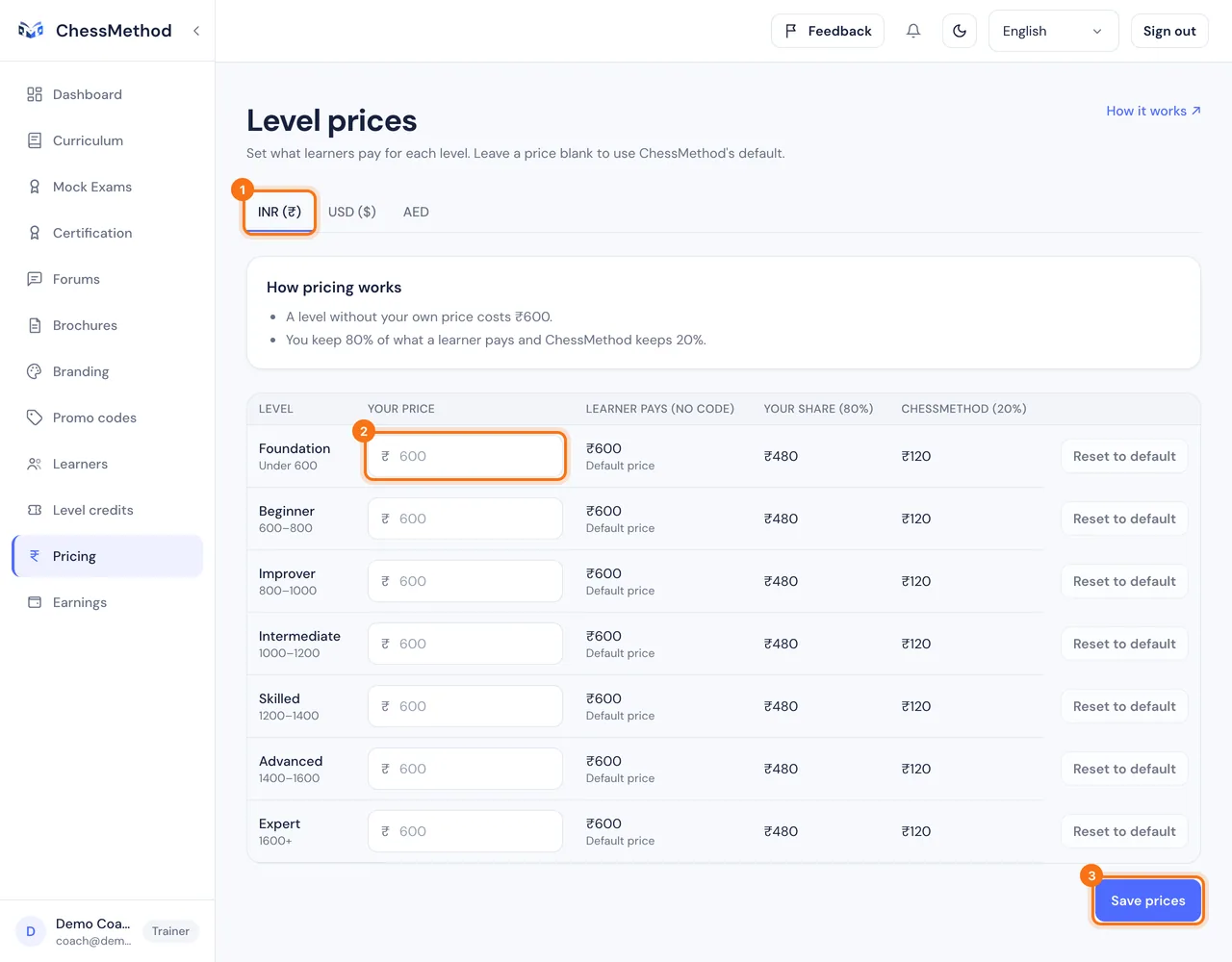
- Open Pricing in the sidebar.
- Pick a currency tab (INR, USD and so on). There is one tab for each currency that is switched on. Your own currency is always there and comes first (US dollars for most coaches outside India, never rupees); its prices take effect once ChessMethod switches that currency on.
- Type your price for each level in Your price. Leave it blank to use ChessMethod's default, or press Reset to default.
- Read across each row: Learner pays (no code), Your share and ChessMethod show exactly how a payment would be split.
- Press Save prices.
- Prices are per level and per currency. A learner sees your price in their own currency, or the default if you left that currency blank. Set every currency you care about.
- Your prices apply to learners linked to you (step 9). Discount codes you create (step 7) come off your price.
- Each currency has a maximum price per level. The form tells you if you go over it.
- A currency's prices only take effect once ChessMethod has switched that currency on. You can edit and save them before then, and the page says so.
Step 7. Create a learner code and share your join link
A learner code links learners to you, decides which levels they see when they sign up, and can add a discount. Its join link is how most of your learners will arrive.
Create a code
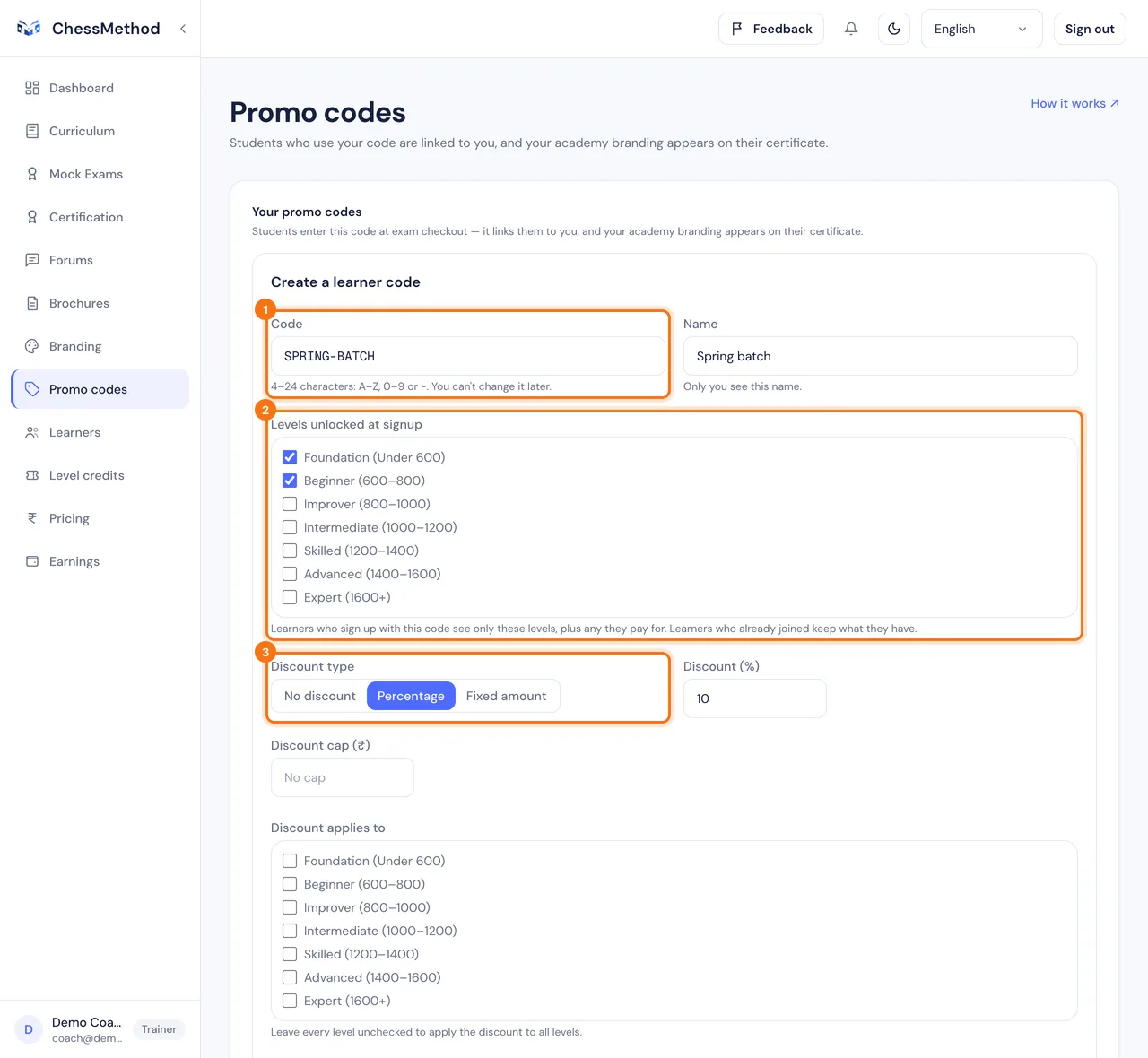
- Open Promo codes and press Create code.
- Code: leave it blank to generate one, or type 4 to 24 characters (A to Z, 0 to 9 or a hyphen). You cannot change it later. Name: only you see it.
- Levels unlocked at signup: tick at least one level. Learners who join with this code see only these levels, plus any they pay for.
- Discount type: choose No discount (a plain link and level selection), Percentage (with an optional Discount cap) or Fixed amount. Fixed amounts and caps need a Currency, and only apply to payments in that currency.
- Discount applies to: tick levels, or leave all unticked to discount every level.
- Optionally set Starts and Ends, a limit under Learners (credits), and Single use per learner. Keep Active ticked, then press Create code.
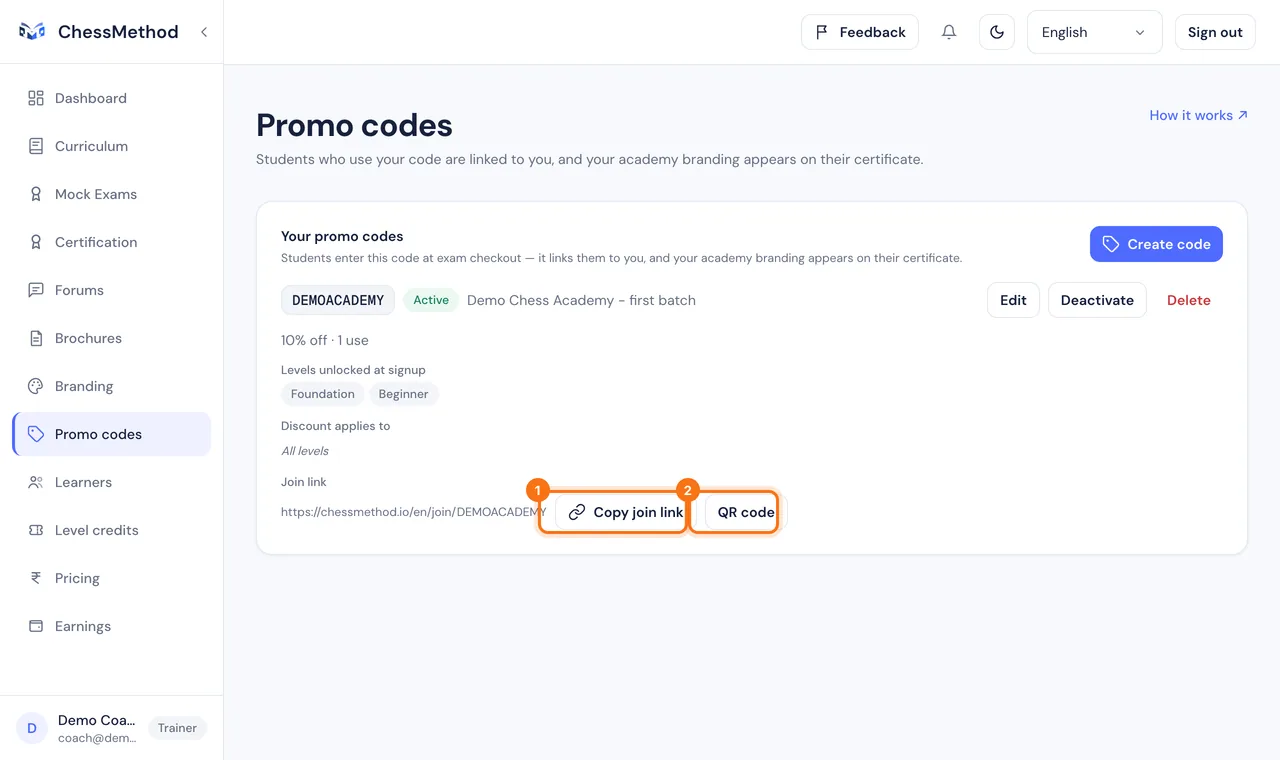
How learners use it
- You send the join link, which looks like
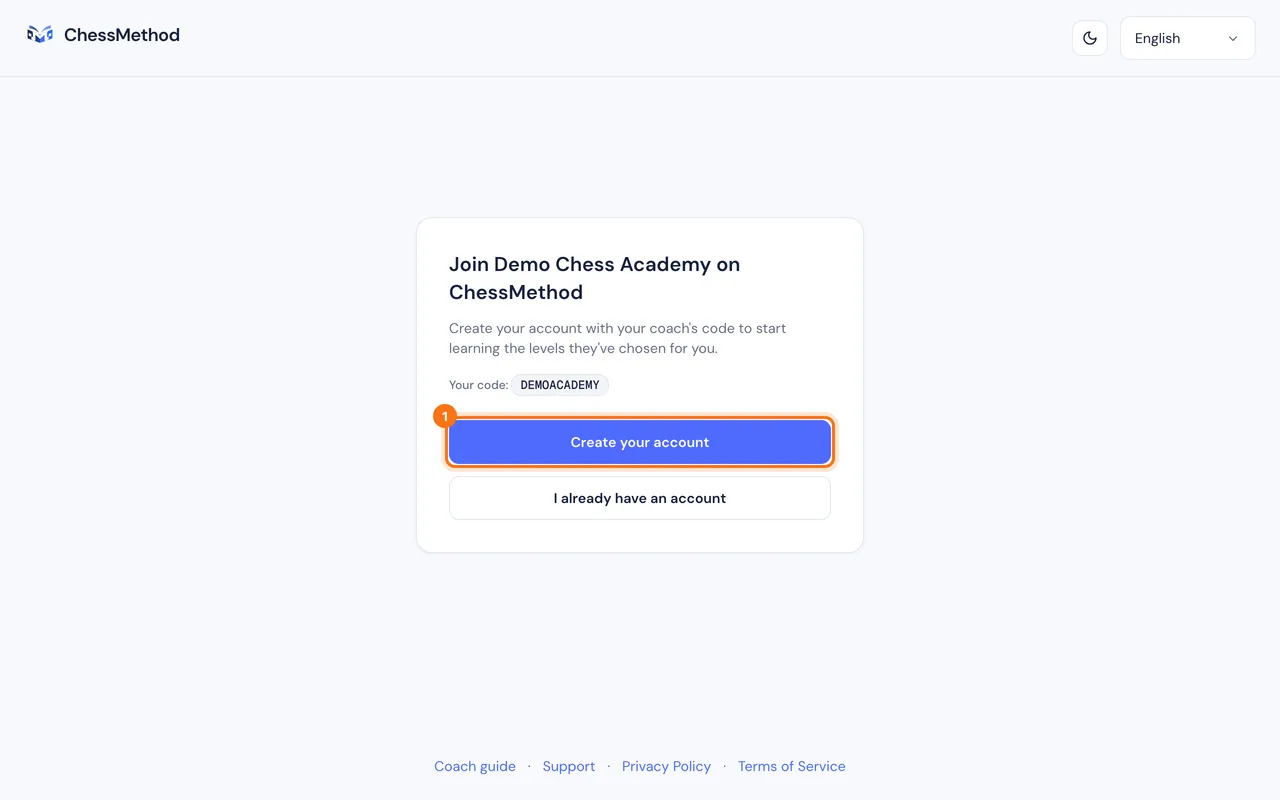
chessmethod.io/en/join/YOURCODE. - It opens a page naming your academy with Create your account. The learner signs up as a learner with your code already applied.
- At the level chooser they see only the levels you unlocked, with your discount applied. A learner who already has an account can type your code there instead.
Step 8. Brand your academy
Branding puts your academy on the certificates your learners earn and on the brochures you create. Learners never see this page.
How to set it up
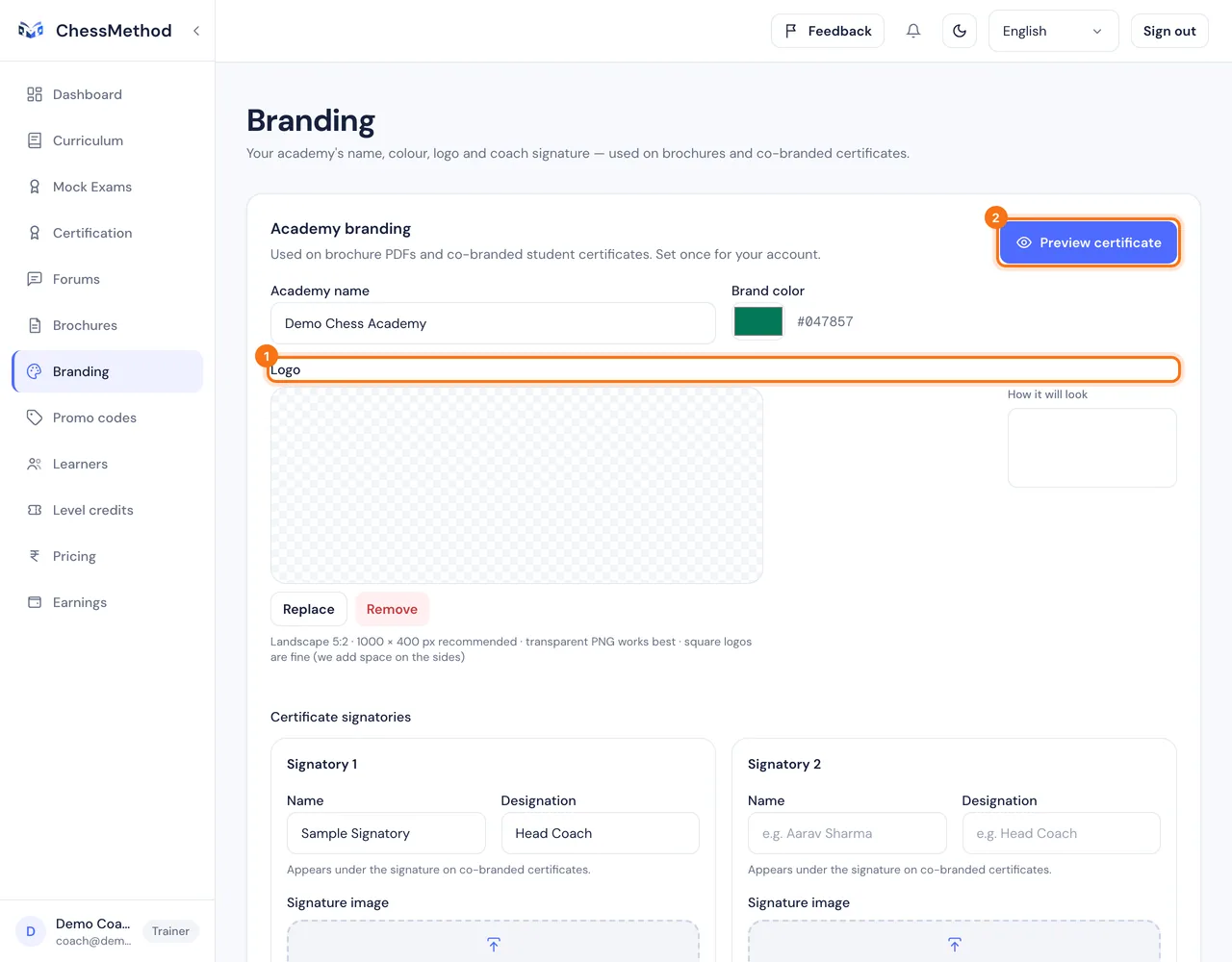
- Open Branding in the sidebar.
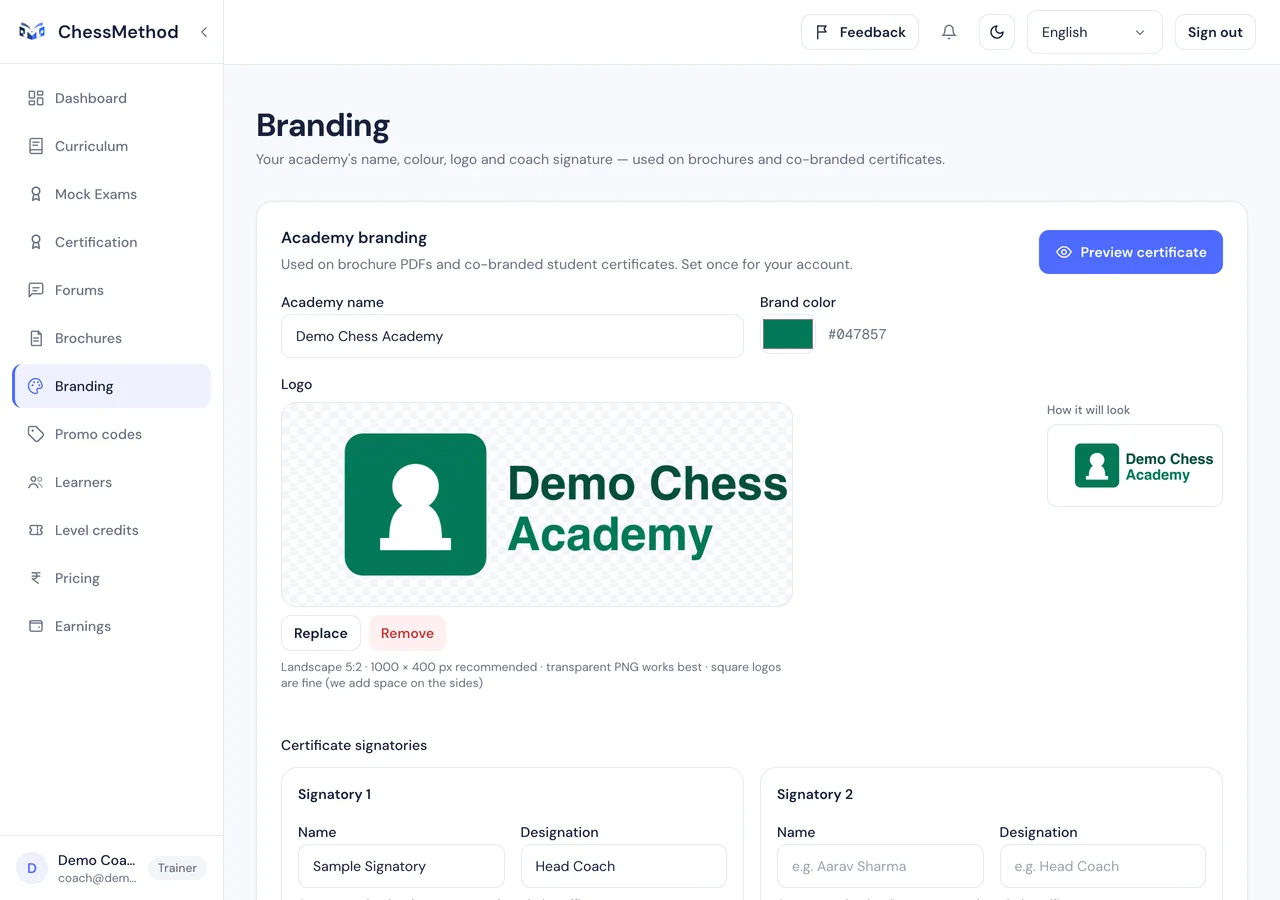
- Type your Academy name and pick a Brand color.
- Under Logo, choose or drop a PNG, JPEG or WebP file (up to 2 MB). A landscape 5:2 image such as 1000 × 400 pixels works best, and square logos are fine. Position it in the crop step and press Use image.
- Under Certificate signatories add up to two people: a name, a designation such as Head Coach, and optionally a signature image (4:1, for example 1200 × 300 pixels, dark ink on a transparent or white background).
- Press Preview certificate to see a sample, and Download sample PDF if you want to check the PDF.
What learners see
On certificates for levels your learners unlock through you (with your code, at your prices or from your invite), your logo and signatories appear next to ChessMethod's, on the certificate page and in the PDF. Other certificates are ChessMethod only. Anyone can still verify a certificate at its public link.
Step 9. Invite and manage your learners
The Learners page is your roster. Invite people, choose the levels each learner sees and follow their progress.
Invite learners
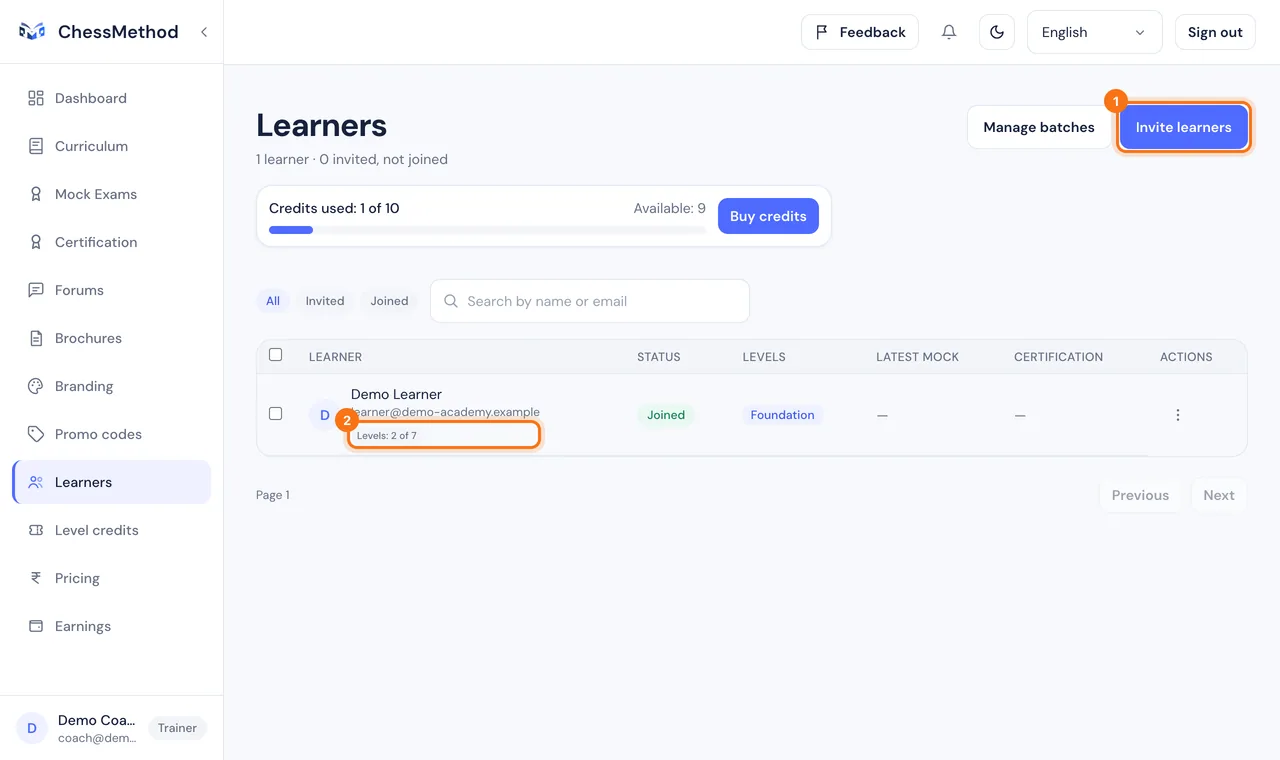
- Open Learners and press Invite learners.
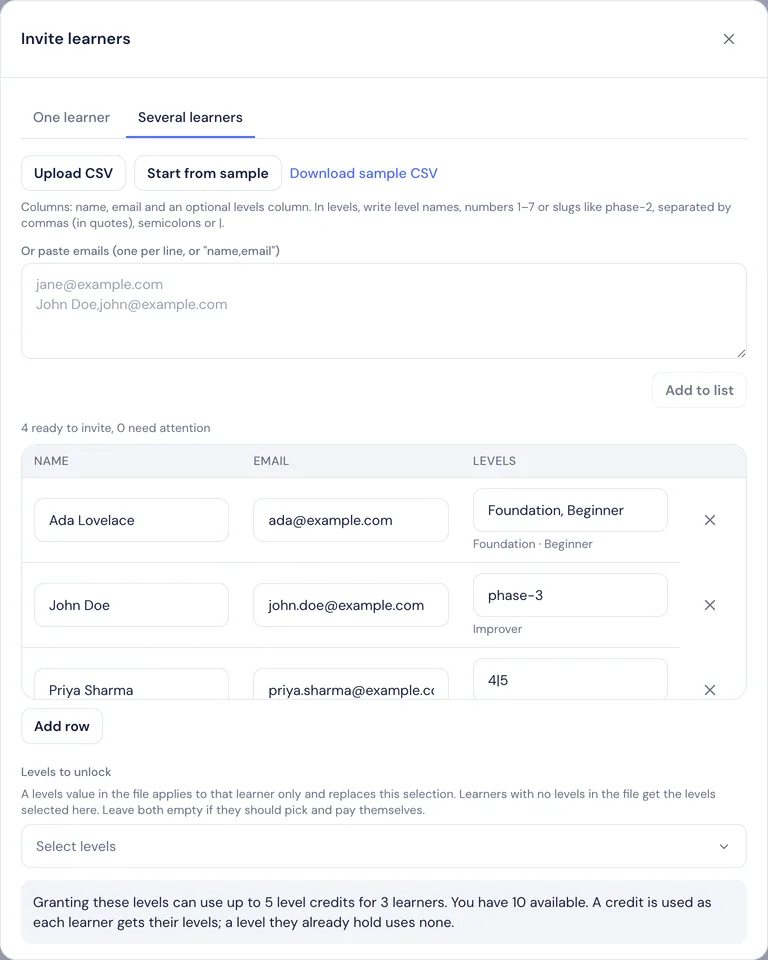
- Choose One learner (name and email) or Several learners (upload a CSV, or paste emails one per line or as "name,email"). A CSV can also say which levels each learner gets (see Invite with a CSV file below).
- Optionally pick Levels to unlock, which gives those levels free and uses one level credit each, add Promo codes to include and add the learners to a batch.
- Press Send. Each learner gets an email with a link. If email is not set up, copy the links shown and share them yourself.
Invite with a CSV file
Download the sample from the dialog (Download sample CSV), or use /samples/chessmethod-learner-invites.csv, and fill it in. Up to 2,000 rows are read.
- Columns.
name,emailand an optionallevels. A header row is optional; with one, the column order does not matter. Files separated by semicolons or tabs, as Excel sometimes saves them, also work. - The levels column says which levels that learner is given for free. Write level names (
Foundation), numbers from 1 to 7 (3) or slugs (phase-3). Capital letters, spaces and accents do not matter. - Several levels in one cell. Separate them with a comma (put the cell in quotes, like
"Foundation, Beginner"), a semicolon or a vertical bar (4|5). - Blank cell. The learner gets the levels you picked in Levels to unlock in the dialog, if any. A row that names levels replaces that selection for that learner only.
- Mistakes stay visible. A row with an unknown level or an invalid email is kept in the table with an error, so you can fix it in place. A repeated email is skipped.
- Credits. Each level given uses one level credit. The dialog shows how many credits the import can use and how many you have. If you are short, learners are still invited, but their free levels are not granted until you buy credits (when enforcement is on).
The sample file has the columns name,email,levels and four rows: "Foundation, Beginner", phase-3, 4|5 and an empty levels cell.
Who counts as your learner
A learner is linked to you when they sign up through your join link, code or invite, or when they type your code at checkout. Joining costs nothing and uses no credit. An email on your roster that has not joined is only an invitation: you cannot see progress or control levels until the learner is linked. Only one coach can control a learner's levels.
Control which levels each learner sees
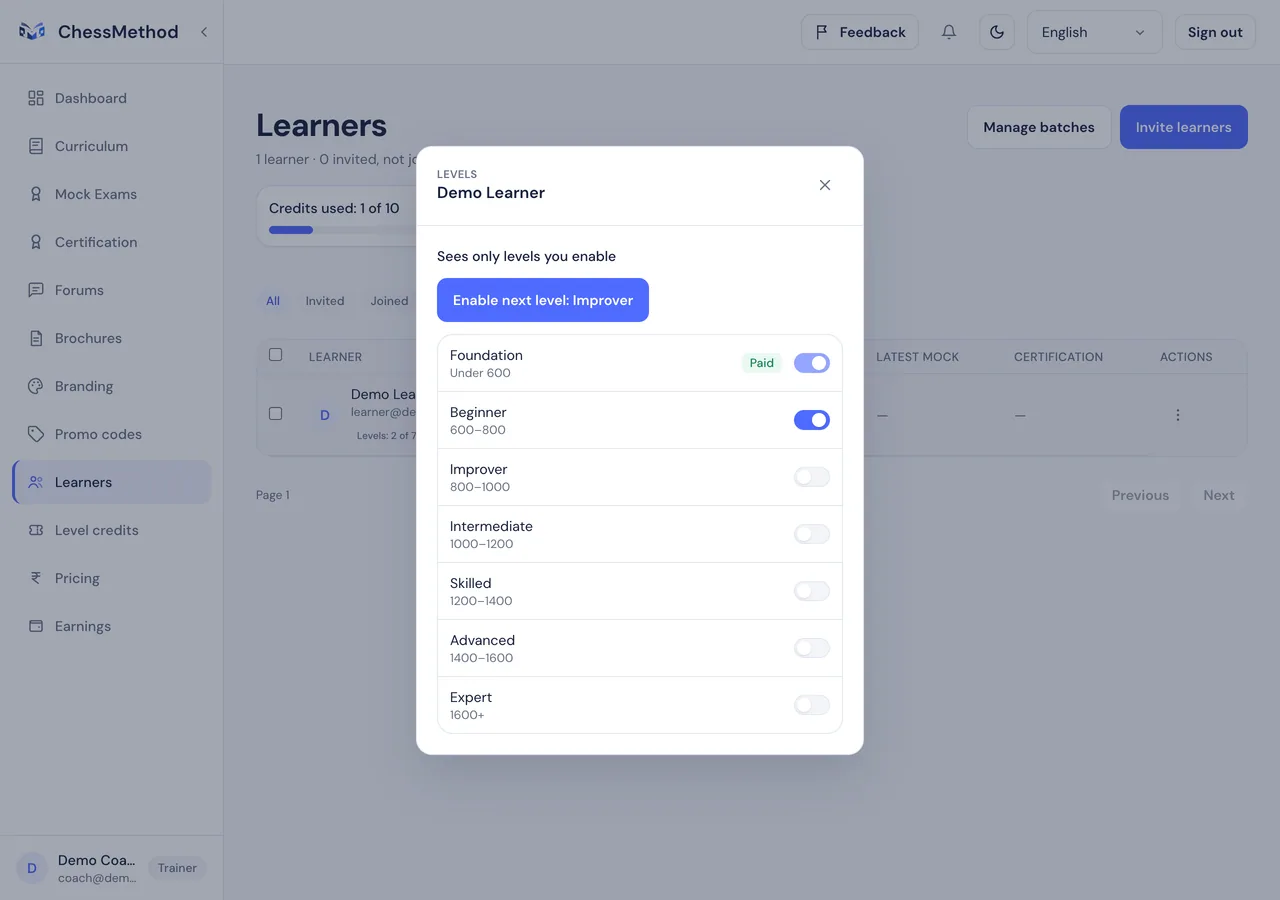
- Learners who join with your code or invite see only the levels you enabled plus any they paid for. Other levels are hidden, not locked.
- To change it, open the learner's row menu or profile and use Levels. Use Turn on level control if the learner has not got it yet, then switch levels on, or press Enable next level. To do it for many learners, tick them and use Enable level….
- Enabling a level costs nothing. It makes the level available to buy, it does not give it away. A level a learner has paid for always stays visible.
Follow progress
The table shows each learner's status (Joined or Invited), levels, latest mock exam and certification. Open a joined learner's name for their profile: unlocked levels, certification sessions, mock exams, scores and Review for exam answers. View as learner in the row menu previews the product as they see it, and Manage batches groups learners into classes. Your dashboard also lists learners who need attention (no activity for 7 days) and those who are exam ready.
Step 10. What happens when a learner pays you
This is the learner's side of the journey, and what you see afterwards.
The learner's journey
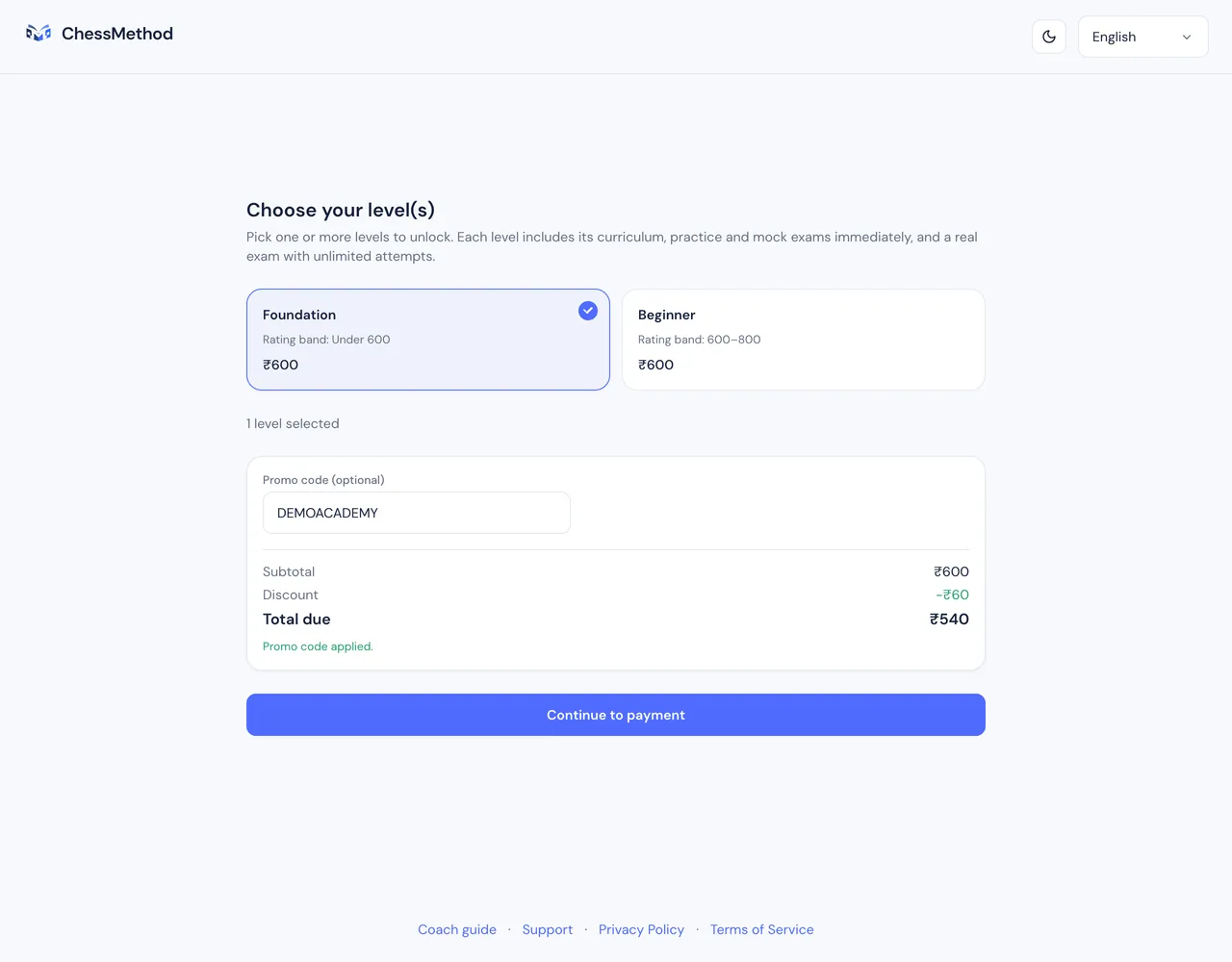
- Opens your join link, or the link in your invite email.
- Creates a learner account. Your code is already applied, and a phone number (a parent's or guardian's for young players) is optional. A profile photo is asked for before the exam.
- Chooses levels. They see only the levels you unlocked, each with the price in their currency and your discount.
- Pays: Razorpay for learners in India (rupees), Stripe Checkout for everyone else. A learner outside India is never shown rupees. If their currency is not switched on yet, they see the prices in US dollars and a Payments in US dollars open soon message instead of a working Pay button.
- Gets immediate access to the level's curriculum, practice and mock exams, plus the real exam with unlimited attempts.
What you see afterwards
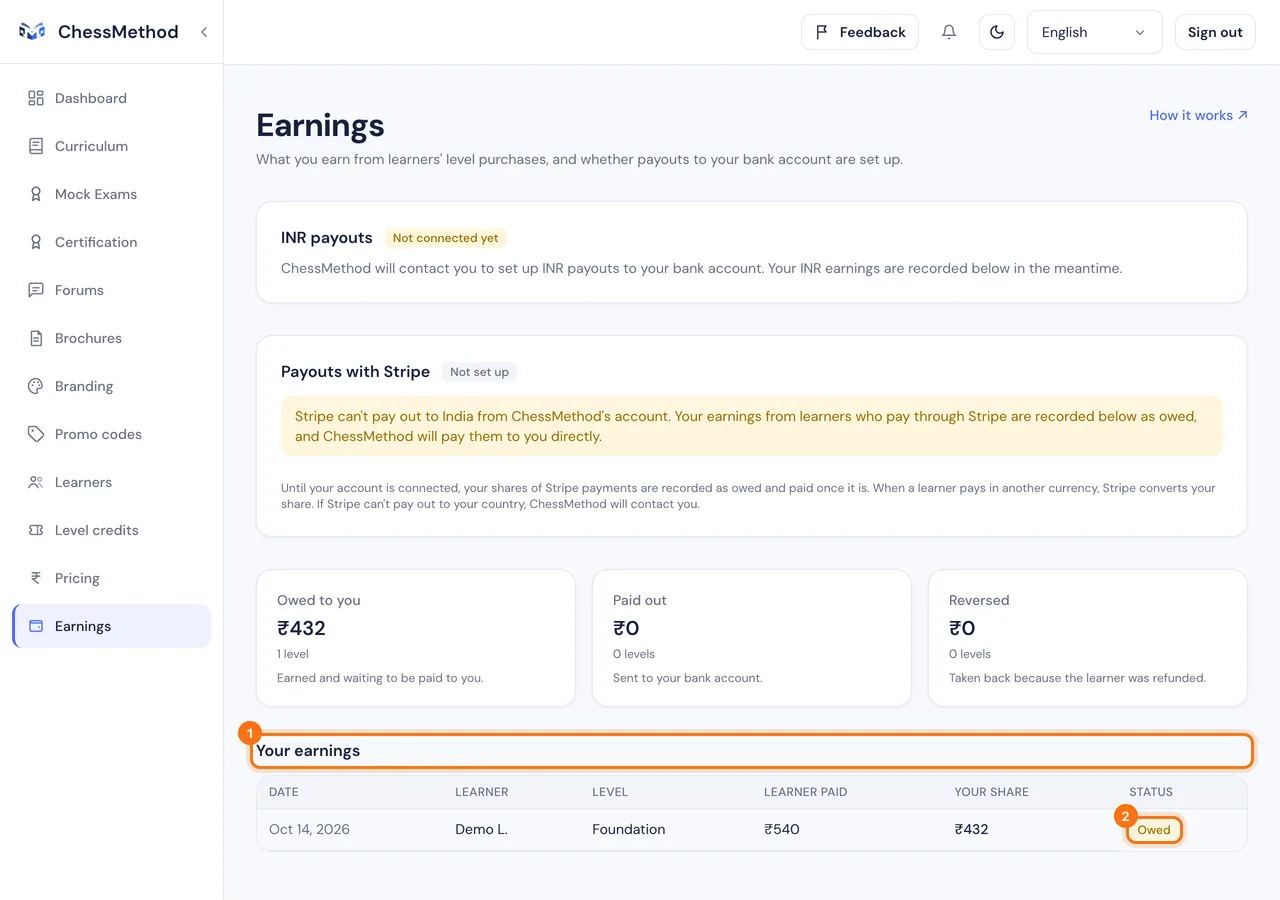
- Earnings: a new row with the date, the learner, the level, Learner paid, Your share and a status. Owed means your share is waiting to be paid, Paid out means it has been sent (by Stripe, Razorpay or by ChessMethod's bank transfer, with its date and reference), Reversed means it was taken back after a refund.
- Level credits: a Level credit used row naming the learner and the level, and your balance goes down by one.
- Learners: the learner shows as joined, with the level they bought.
Step 11. Checklist and troubleshooting
Your checklist
- Create your coach account (step 2)
- Activate your access: subscribe, redeem a coach code or use a coach link (step 2)
- Complete your profile and check your billing country (step 3)
- Buy level credits (step 4)
- Set up payouts on Earnings (step 5)
- Set your level prices on Pricing (step 6)
- Create a learner code and copy its join link (step 7)
- Add your academy name, logo and signatories on Branding (step 8)
- Invite learners or share your join link, and choose their levels (step 9)
- Watch your first earning arrive (step 10)
Questions and fixes
Stripe says it is still verifying my details.
That is normal for a while after you finish. Your status stays Setup in progress and the Earnings page updates by itself when Stripe is done. If Stripe asks for more, press Continue Stripe setup. If it stays stuck, contact support.
A learner paid but I got no share.
Check these in order. (1) Was the learner linked to you? A learner who did not use your link, code or invite pays the default price and the whole amount goes to ChessMethod; ask them to enter your code at checkout next time. (2) If credit enforcement is on and you had no credits, you earn no share on that level, so buy credits. (3) Look at the row on Earnings: Owed only means it has not been paid out yet, usually because your payout account is not connected.
I cannot change my billing country.
It locks after your first real payment, because the country decides your currency. Contact support and ChessMethod can change it for you.
My country is not supported by Stripe.
Your earnings are still recorded, as Owed. ChessMethod contacts you to arrange payment directly. Nothing is lost and learners can still pay.
I paid for credits but my balance did not change.
Confirmation usually takes a few seconds. Refresh Level credits. If the payment left your account and the balance has not moved after a few minutes, contact support with your payment reference.
A learner cannot see a level.
Learners who joined through you see only the levels you enabled. Open the learner on Learners, then Levels, and switch the level on. They can then buy it.
Can I give a learner a level for free?
Yes: Learners, then Invite learners, then Levels to unlock. Each free level uses one level credit. Promo codes you create never give levels away.
Why does my learner's certificate not show my academy?
Your branding appears on certificates for levels the learner unlocked through you: with your code, at your prices or from your invite. Check that your name, logo and signatories are saved on Branding.
A learner signed up without my link.
They are not linked to you yet, so you cannot see their progress and your price and share do not apply. If they enter your code when they buy a level, that purchase links them to you.
What will my learners see on their card statement?
A charge from ChessMethod’s parent company, ProductGenie, shown in a form similar to PRODGENIE* CHESSMETHOD. The exact wording depends on the bank. On the payment page itself learners see “ChessMethod”.
I see ₹ but I'm not in India.
Your billing country is not set to where you are. Open Profile, find Billing country, choose your country and press Save. Outside India you should only ever see US dollars or your own currency. If Billing country says to contact support, you have already made a real payment: email support and ChessMethod can change it for you.
The Pay button says payments in US dollars open soon.
Payments in your currency have not been switched on yet. Nothing is charged and nothing is lost: you can still set prices and share your join link, and ChessMethod will let you know when payments open. Your earnings are recorded once learners can pay.
Where did the Account page go?
It is now called Profile, at the bottom of the sidebar. It also holds your photo, your name, your phone number and your password.
My earnings say "Paid by bank transfer".
ChessMethod paid your share by bank transfer, for example because Stripe cannot pay out to your country. The row shows the date and a reference to match against your bank statement. If a record needs correcting, ChessMethod does that and the page shows the updated history.
Still stuck? Email support@chessmethod.io and include your account email.
Ready to start? Sign up as a coach.
Create your coach accountScreenshots use a fictional "Demo Chess Academy" and test data.