Step 1. What a federation gets, and how the money works
A federation is the top of a tree of organisations on ChessMethod. Everything below it, from regions to single schools, shares one set of rules, one set of dashboards and one pool of level credits.
What a federation gets
- A tree of units. The federation sits at the top. Below it you can add groups (regions, districts, clubs: as many layers as you need) and, inside them, academies and schools. Academies and schools work the same way; the label is only yours to choose.
- Any number of coaches in each academy or school. Coaches teach their own learners; the unit's owner and admins see everyone in the unit.
- Staff with the right amount of access. Ready-made roles for owners, admins, a read-only viewer for a ministry liaison and the coach, plus custom roles you build yourself from a fixed list of permissions.
- Dashboards. Learners, activity, exams, certificates, level credits, codes and (for those allowed) revenue, for any unit and everything below it, by month, quarter or year.
- A verified government report. A branded PDF (English or Arabic) and a CSV file, with a verification code and QR that anyone can check, and a privacy rule that hides figures about fewer than 5 learners.
- Level credit pools. You buy level credits once, at federation level, and hand them down to groups, academies and schools.
- Policies. Which levels learners may see, whether coaches may set their own prices, who may create codes or buy credits, and whose name appears on certificates.
How the money works
- Learners buy levels. Each level has a price in the learner's own currency, as it does everywhere on ChessMethod: the default price, or a coach's own price unless you lock prices (step 5).
- Each level uses one level credit. Every level that a learner of one of your units obtains uses one credit from that unit's pool. Joining a unit is free, and making a level available to a learner costs nothing. A full refund of a level gives its credit back.
- The federation pays for credits, not for learners. You prepay credits in advance, by card or by an invoice that ChessMethod records (step 6). Nothing is billed per learner and there is no subscription for the federation or for coaches inside it.
- The coach earns a share of what the learner paid. By default 80% goes to the coach whose learner bought the level and ChessMethod keeps 20%. Today the federation itself does not receive a share of learner payments.
A learner of your unit pays for a level
Split at the moment of purchase
The coach earns 80%
ChessMethod keeps 20%
1 level credit is used from the unit's pool, paid for in advance by the federation
The path in one line
ChessMethod creates your federation and invites the owner, the owner builds the structure and invites staff, you set policies, buy and hand out level credits, give every academy or school a join code, and then watch the dashboards and download your report. A one-page checklist is at the end of this guide.
Step 2. Get your federation and open the console
A federation is set up by ChessMethod, who then invite its first owner. After that you manage everything yourself in the organisation console.
How a federation is created
- You ask ChessMethod. There is no self-service sign-up for federations today. Write to support@chessmethod.io with the federation's name, its country, the currency you want to buy level credits in, and the email address of the person who will be the owner.
- ChessMethod creates it in the platform admin area (Federations, then Create federation) and sends an invitation to the owner's email address.
- The invitation is valid for 14 days and works only for the invited email address. If it expires, ask ChessMethod to send it again.
Accept the owner invitation
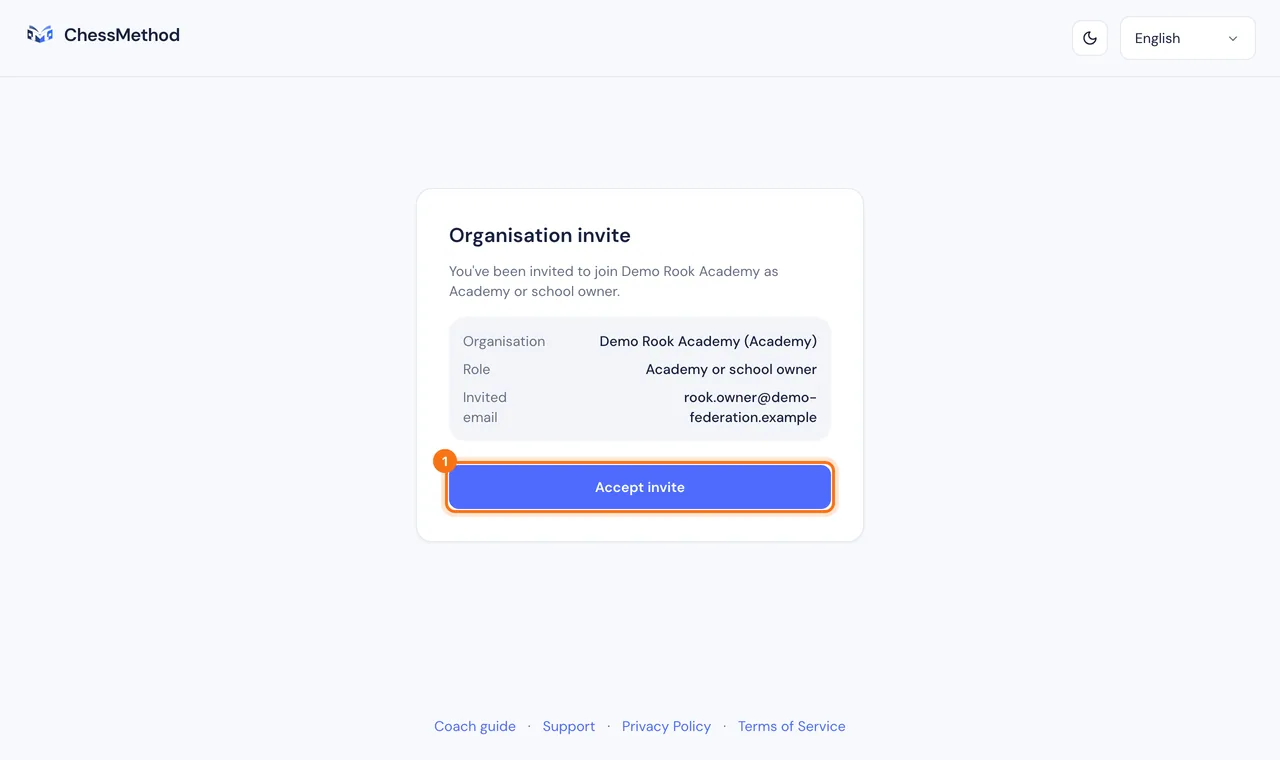
- Open the link in the email (View invite). The page says which organisation and role you are invited to.
- Press Create an account if you have no ChessMethod account yet, or Sign in to accept if you have one. Use the invited email address. Sign-up here creates a coach-type account, and that is correct for federation staff.
- Back on the invite page, press Accept invite.
The console
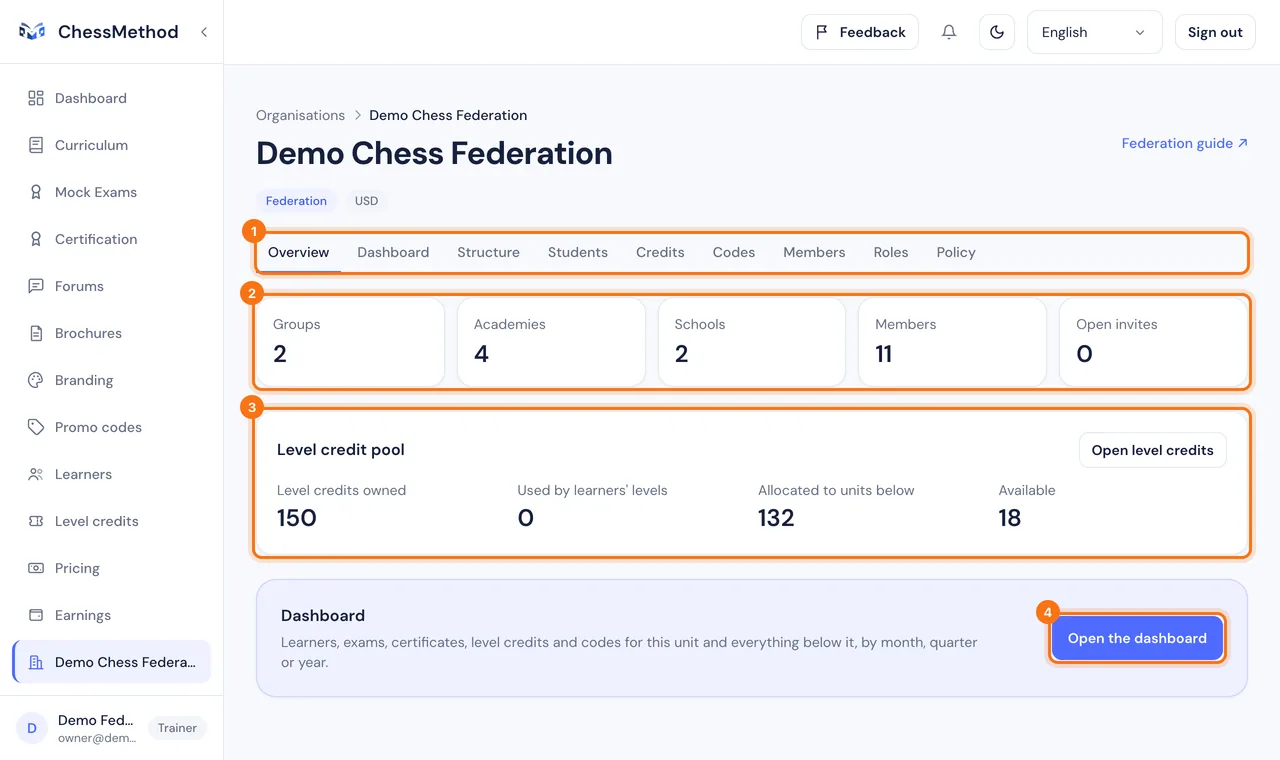
- Your federation now appears in the sidebar. If you belong to several organisations, pick one from the Your organisations list.
- The console lives at
/org/your-federation. Its header shows the name, the kind of unit (Federation) and the currency. - The tabs you see depend on your role: Overview, Dashboard, Structure, Students, Credits, Codes, Members, Roles and Policy. A tab you cannot see is one your role does not allow (step 4).
What each tab is for
- Overview. Counts of groups, academies, schools, members and open invitations, your level credit pool and a link to the dashboard.
- Dashboard. Learners, exams, certificates, credits, codes and revenue, plus the report download (steps 8 and 9).
- Structure. The tree of groups, academies and schools (step 3).
- Students. Totals by level and unit, and the list of learners for people allowed to see names (step 8).
- Credits. The level credit pool, purchases, allocation and history (step 6).
- Codes. Join codes and discount codes (step 7).
- Members and Roles. Staff, invitations and custom roles (step 4).
- Policy. What each unit is allowed to do (step 5).
Step 3. Build your structure: groups, academies and schools
The Structure tab is the tree of your federation. You add units, rename them and archive them. Coaches and learners live in academies and schools; groups only organise.
Add a unit
- Open the Structure tab.
- Press Add unit next to the federation or the group you want to add it to.
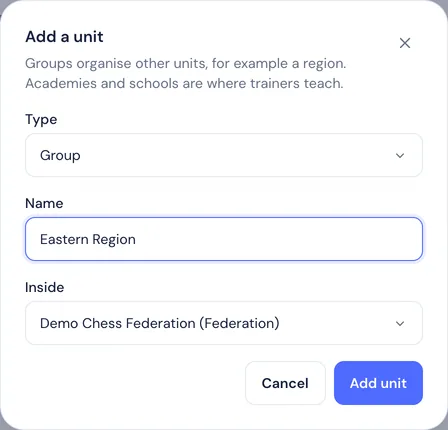
- Choose the Type (Group, Academy or School), type its Name and check Inside, the unit it goes under.
- Press Add unit. It appears in the tree straight away.
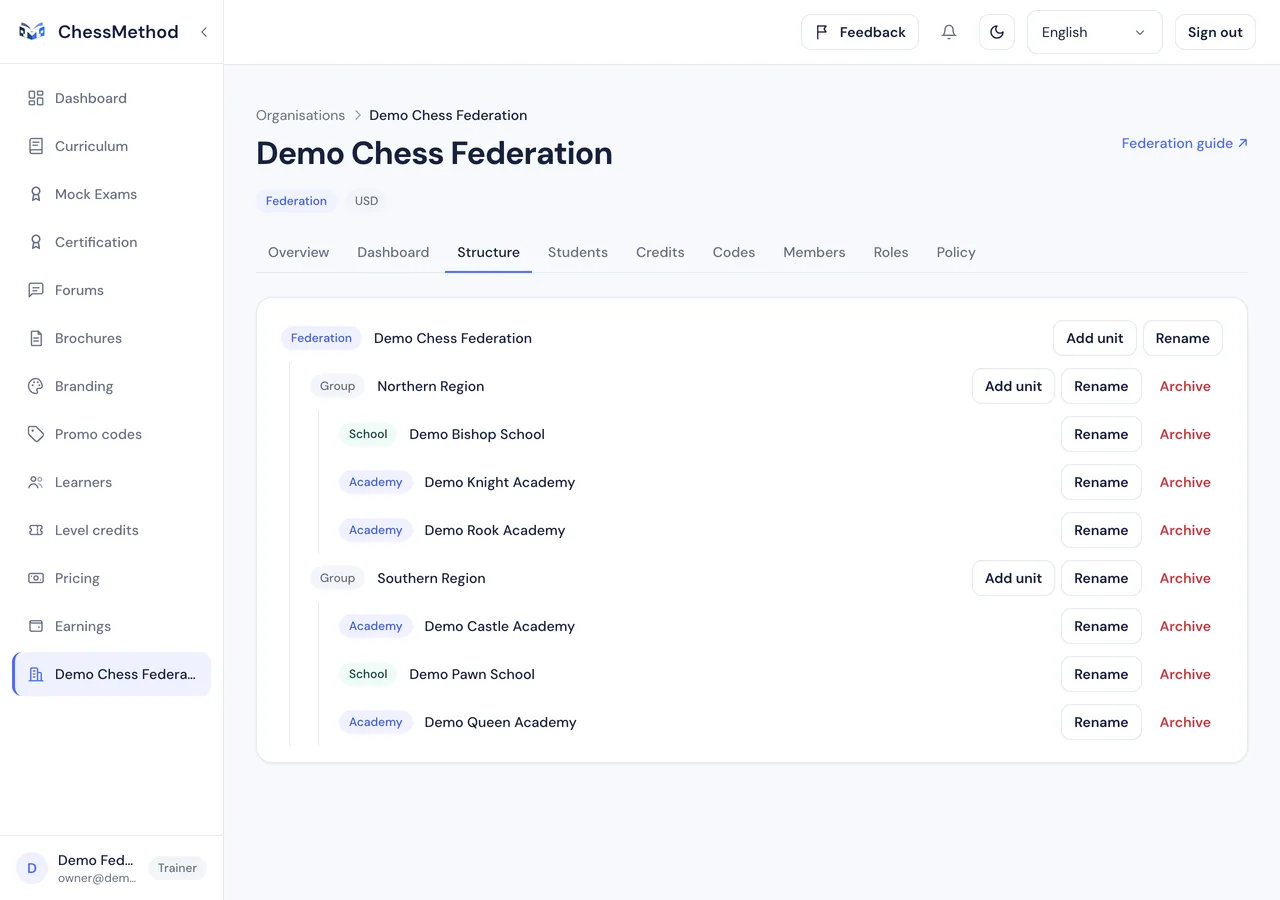
- What can go where. Groups can contain groups, academies and schools. Academies and schools are the end of a branch and contain no other units. The tree can be deep, but not without limit.
- Rename. Use Rename on a unit's row. Names are what staff, learners and reports show.
- Archive and restore. Archive hides a unit, stops it counting in totals and removes the access its staff had. Restore brings it back. A unit that still has active units inside it cannot be archived until you archive those first.
- Who may do this. Anyone whose role allows adding or managing units: the federation owner and admins by default.
An academy that is already on ChessMethod
An academy that already uses ChessMethod on its own (a coach with their own account and learners) can be moved into your tree, keeping its coaches, learners and history. Today only ChessMethod can do this: ask support@chessmethod.io to use Add existing academy. Once it is added, your staff can see that academy's members, learners and results, the federation's policies apply to it and it appears in your dashboards. ChessMethod can also move the coach's unused level credits into the academy's pool; those credits then belong to the pool. An academy can also leave: ask ChessMethod to use Detach from federation. Its staff lose access to it immediately, its learners stay with the academy, the credits you allocated to it that it has not used go back to your pool and its join codes are switched off.
Step 4. Invite your staff and choose what each person can see
Everyone who works in the console is a member holding a role at a unit. A role applies at that unit and to everything below it, never above or beside it.
Ready-made roles
| Role | Given at | What it allows |
|---|---|---|
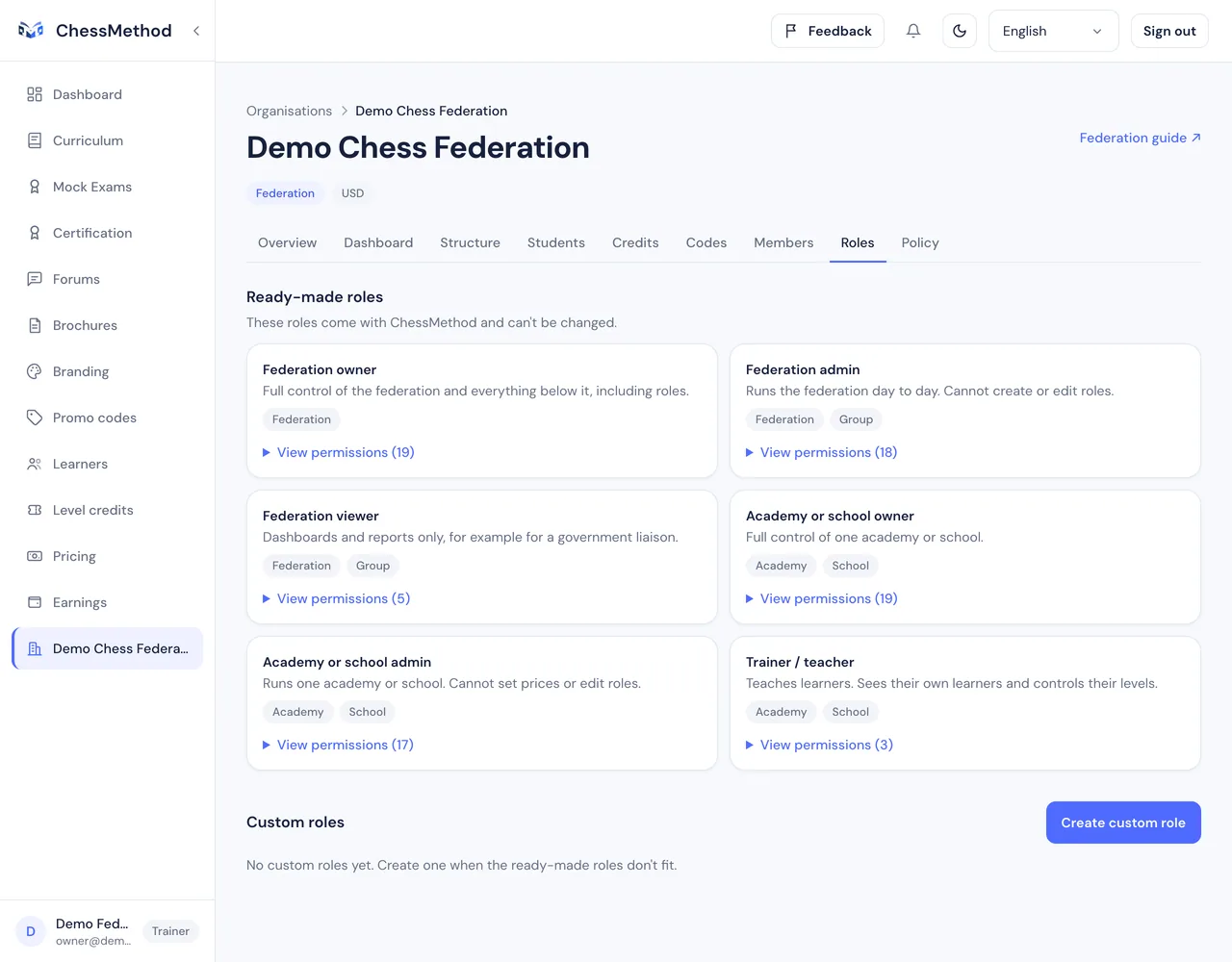
| Federation owner | The federation | Everything, including creating and editing custom roles. A federation always needs at least one owner. |
| Federation admin | The federation or a group | Everything except creating or editing roles. Runs the federation day to day. |
| Federation viewer | The federation or a group | Dashboards, report downloads, combined student results and level credit totals. No names, no results of individual learners, no changes. Made for a ministry liaison. |
| Academy or school owner | An academy or school | Everything inside that one unit: its coaches, learners, codes and credits, but not setting prices for the unit's coaches or editing roles. |
| Academy or school admin | An academy or school | Runs the unit day to day. Cannot set prices or edit roles. |
| Trainer / teacher | An academy or school | Teaches. Sees and manages their own learners and chooses which levels they can see. Does not open the whole unit. |
- Role
- Federation owner
- Given at
- The federation
- What it allows
- Everything, including creating and editing custom roles. A federation always needs at least one owner.
- Role
- Federation admin
- Given at
- The federation or a group
- What it allows
- Everything except creating or editing roles. Runs the federation day to day.
- Role
- Federation viewer
- Given at
- The federation or a group
- What it allows
- Dashboards, report downloads, combined student results and level credit totals. No names, no results of individual learners, no changes. Made for a ministry liaison.
- Role
- Academy or school owner
- Given at
- An academy or school
- What it allows
- Everything inside that one unit: its coaches, learners, codes and credits, but not setting prices for the unit's coaches or editing roles.
- Role
- Academy or school admin
- Given at
- An academy or school
- What it allows
- Runs the unit day to day. Cannot set prices or edit roles.
- Role
- Trainer / teacher
- Given at
- An academy or school
- What it allows
- Teaches. Sees and manages their own learners and chooses which levels they can see. Does not open the whole unit.
Invite someone
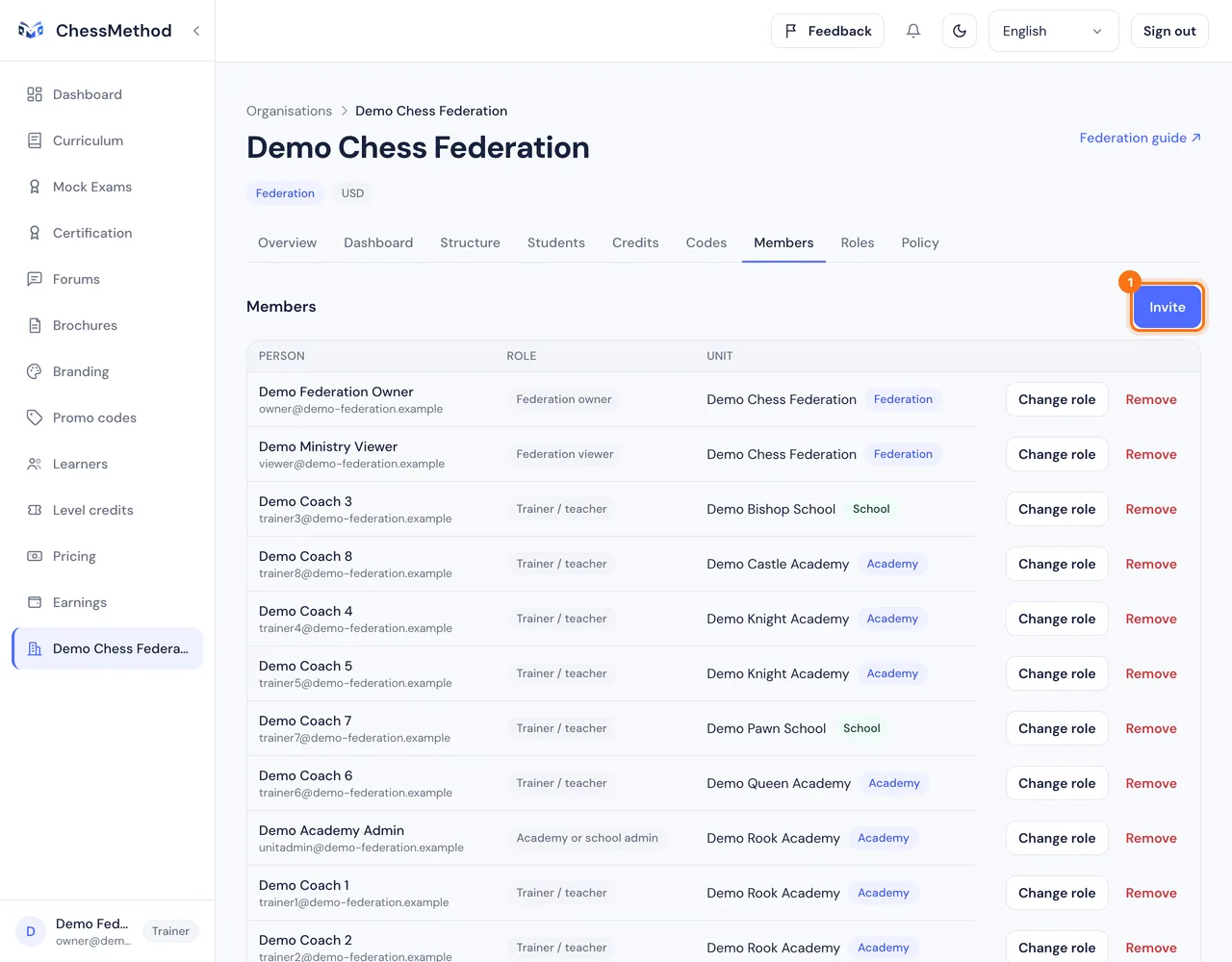
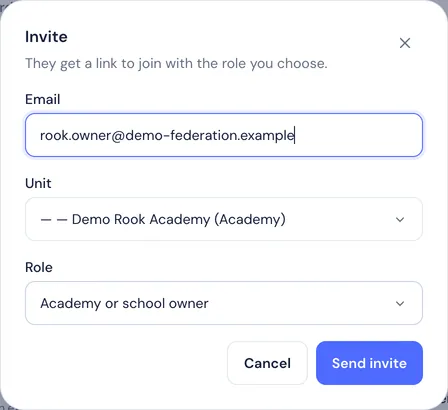
- Open the Members tab and press Invite.
- Type the person's Email, choose the Unit (the federation, a group, an academy or a school) and the Role. The role list only offers roles that make sense at that unit and that you are allowed to give.
- Press Send invite. ChessMethod emails the invitation. If email is not set up in your environment, the dialog shows the link instead: copy it and send it yourself.
- The person opens the link, signs in or creates an account with that email address and presses Accept invite (step 2).
Change or remove access
- Change role and Remove are on each member's row. Removing someone takes away the access the role gave them; their account stays.
- You can never give or change access beyond your own permissions.
- Every federation, academy and school needs at least one owner, so the last owner cannot be removed or changed until another is named.
Custom roles
- Open the Roles tab. The ready-made roles are listed at the top and cannot be changed.
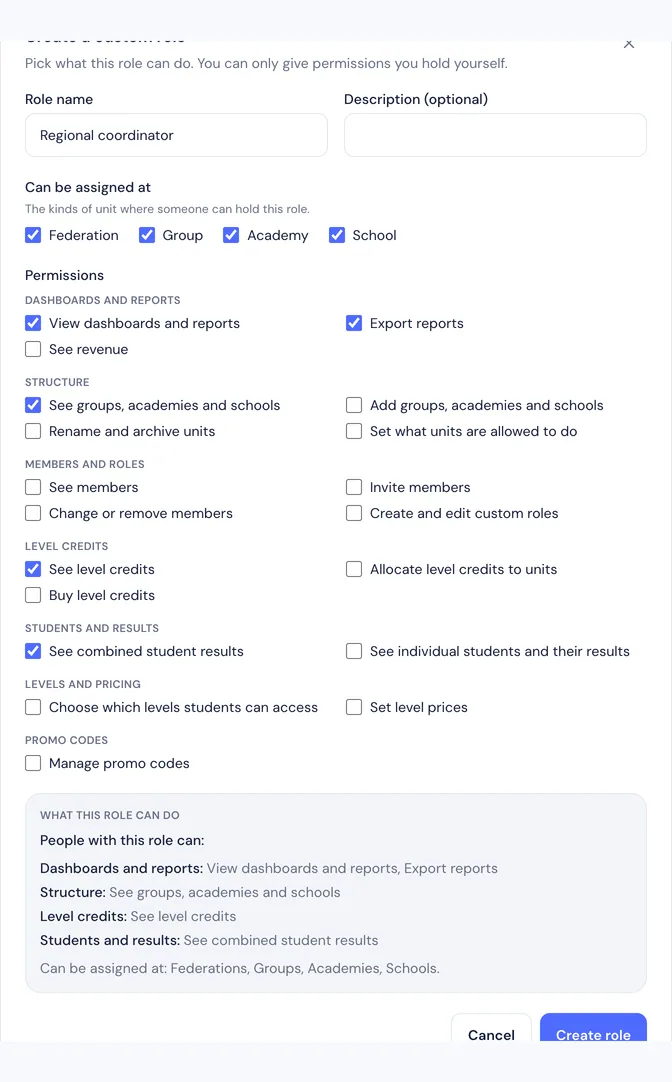
- Press Create custom role. Give it a Role name and an optional description, tick where it Can be assigned (federation, group, academy, school) and tick its Permissions.
- The summary on the right says in plain words what people with the role can do. You can only give permissions you hold yourself.
- Press Create role. Then choose it when you invite someone. A role that someone still holds cannot be deleted.
The permissions you can combine
- Dashboards and reports: view dashboards and reports, export reports, see revenue.
- Structure: see groups, academies and schools; add them; rename and archive them; set what units are allowed to do.
- Members and roles: see members; invite members; change or remove members; create and edit custom roles.
- Level credits: see them, allocate them to units, buy them.
- Students and results: see combined student results, or see individual students and their results.
- Levels and pricing: choose which levels students can access; set level prices.
- Promo codes: manage join and discount codes.
Who can see which learner data
- Individual access ("see individual students and their results"): names, profiles, exam reviews, photos and proctoring snapshots of the learners of that unit and everything below it. It does not include View as learner or choosing a learner's levels.
- Combined access ("see combined student results"): totals only, on the dashboard and the Students tab. The federation viewer role has this. A viewer who tries to open a learner's profile gets a plain "page not found".
- The Trainer / teacher role is for a coach's own learners, which they manage on their usual Learners page. It never opens a whole academy. If you want a coach to see the whole academy, give them an admin or a custom role with individual access.
- ChessMethod's own platform admins can see everything, to support you.
Step 5. Set the rules for each unit
Policies decide what the units below you may do. You set them for the whole federation or for one group, academy or school, and every setting is enforced right away.
How to set a policy
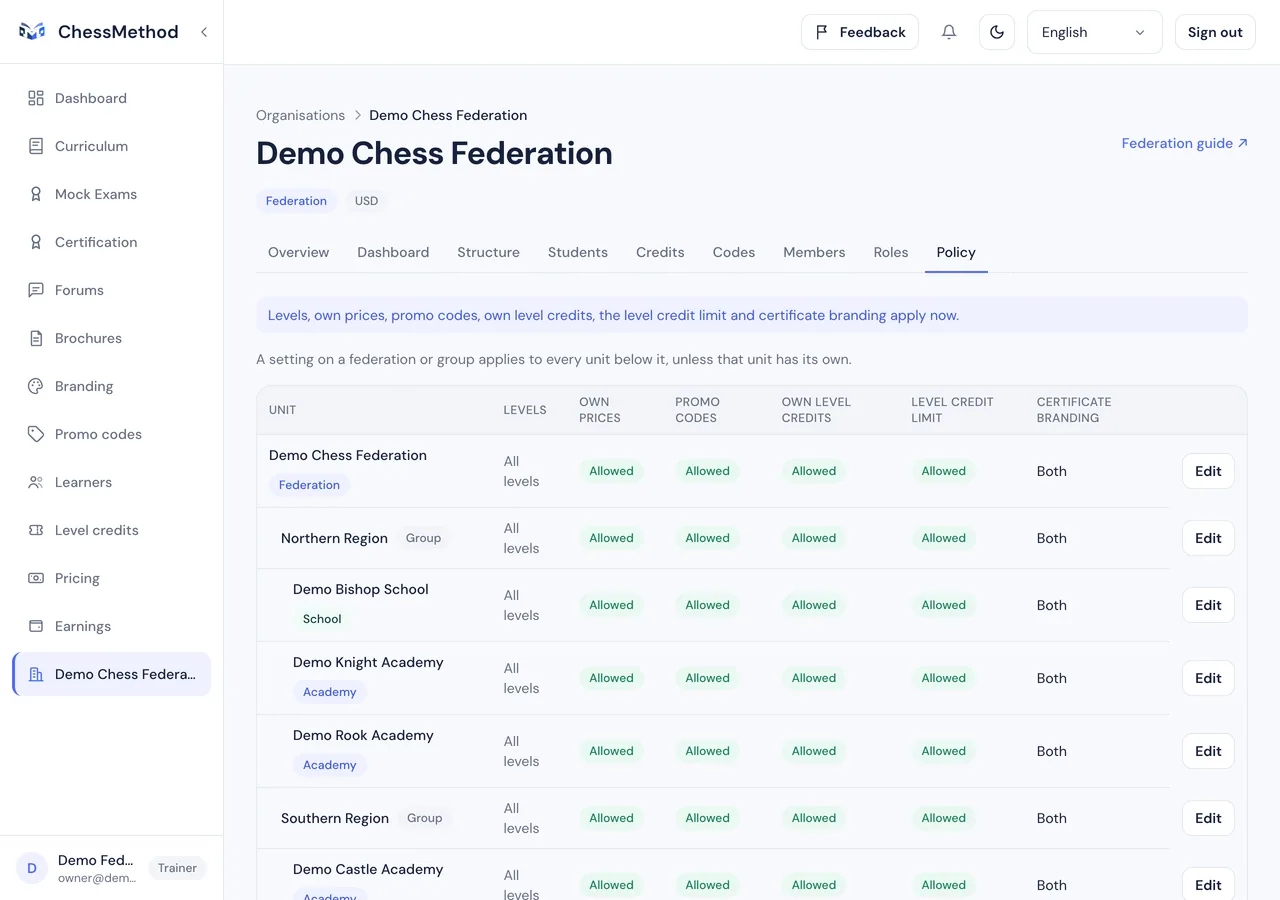
- Open the Policy tab. The table shows every unit with its settings.
- A setting on a federation or group applies to every unit below it, unless that unit has its own. Same as above means it follows its parent; Own settings marks a unit with an override.
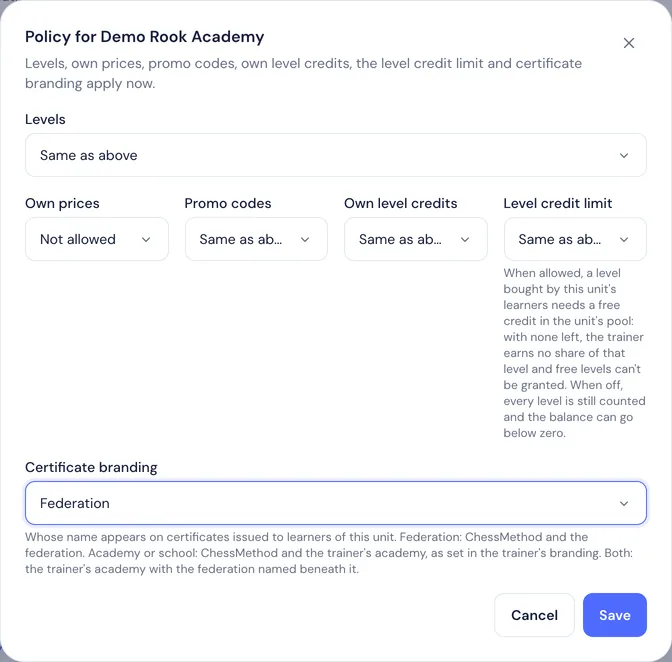
- Press Edit on a row, choose a value for each setting (Same as above, Allowed or Not allowed) and press Save.
What each setting does
| Setting | What it does | If you do nothing |
|---|---|---|
| Levels | Which of the seven levels the learners of the unit can see and buy. All levels, or Only selected levels. Levels that are not allowed are hidden from the curriculum, the level chooser, checkout and certification. | All levels |
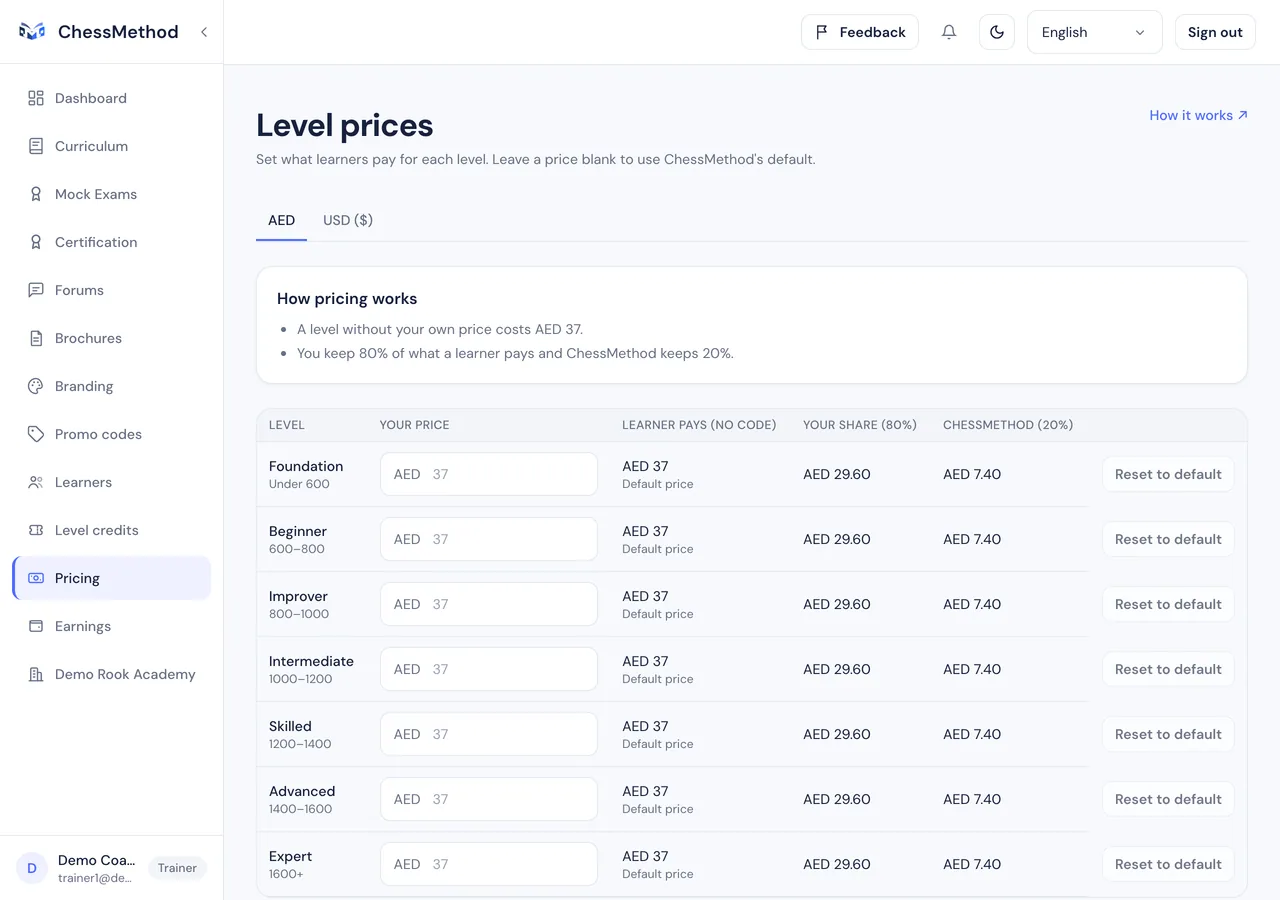
| Own prices | Whether the coaches of the unit may set their own level prices. When Not allowed, their Pricing page is read-only and their learners pay ChessMethod's default price. Prices a coach saved earlier are kept and apply again if you allow it later. | Allowed |
| Promo codes | Whether the unit's own staff can create and change codes. When Not allowed they can still see their codes. Federation and group staff can always manage codes. | Allowed |
| Own level credits | Whether the unit's own owner or admin can buy level credits by card for the unit's pool. When Not allowed, the Credits tab explains that the federation must allocate credits instead. | Allowed |
| Level credit limit | What happens when a unit's pool is empty. On: learners can still buy levels, but their coach earns no share of those levels and free levels cannot be granted until credits arrive. Off: everything is still counted, the balance can go below zero and coaches are paid. | On |
| Certificate branding | Whose name is printed on the certificates of the unit's learners. Federation: ChessMethod and the federation's name; the coach's academy is not printed. Academy or school: ChessMethod and the coach's academy, as it is set in the coach's Branding. Both: the coach's academy with the federation named beneath it; if the coach has set no academy branding, the federation alone. | Both |
- Setting
- Levels
- What it does
- Which of the seven levels the learners of the unit can see and buy. All levels, or Only selected levels. Levels that are not allowed are hidden from the curriculum, the level chooser, checkout and certification.
- If you do nothing
- All levels
- Setting
- Own prices
- What it does
- Whether the coaches of the unit may set their own level prices. When Not allowed, their Pricing page is read-only and their learners pay ChessMethod's default price. Prices a coach saved earlier are kept and apply again if you allow it later.
- If you do nothing
- Allowed
- Setting
- Promo codes
- What it does
- Whether the unit's own staff can create and change codes. When Not allowed they can still see their codes. Federation and group staff can always manage codes.
- If you do nothing
- Allowed
- Setting
- Own level credits
- What it does
- Whether the unit's own owner or admin can buy level credits by card for the unit's pool. When Not allowed, the Credits tab explains that the federation must allocate credits instead.
- If you do nothing
- Allowed
- Setting
- Level credit limit
- What it does
- What happens when a unit's pool is empty. On: learners can still buy levels, but their coach earns no share of those levels and free levels cannot be granted until credits arrive. Off: everything is still counted, the balance can go below zero and coaches are paid.
- If you do nothing
- On
- Setting
- Certificate branding
- What it does
- Whose name is printed on the certificates of the unit's learners. Federation: ChessMethod and the federation's name; the coach's academy is not printed. Academy or school: ChessMethod and the coach's academy, as it is set in the coach's Branding. Both: the coach's academy with the federation named beneath it; if the coach has set no academy branding, the federation alone.
- If you do nothing
- Both
Step 6. Buy and hand out level credits
A level credit pays for one level a learner of your unit obtains. You hold credits in pools: one for the federation, one for each group and one for each academy or school.
How pools work
- One credit, one level. When a learner of a unit buys a level, or is given one for free, one credit leaves that unit's pool. Joining a unit uses nothing, and neither does making a level available to a learner. A full refund returns the credit.
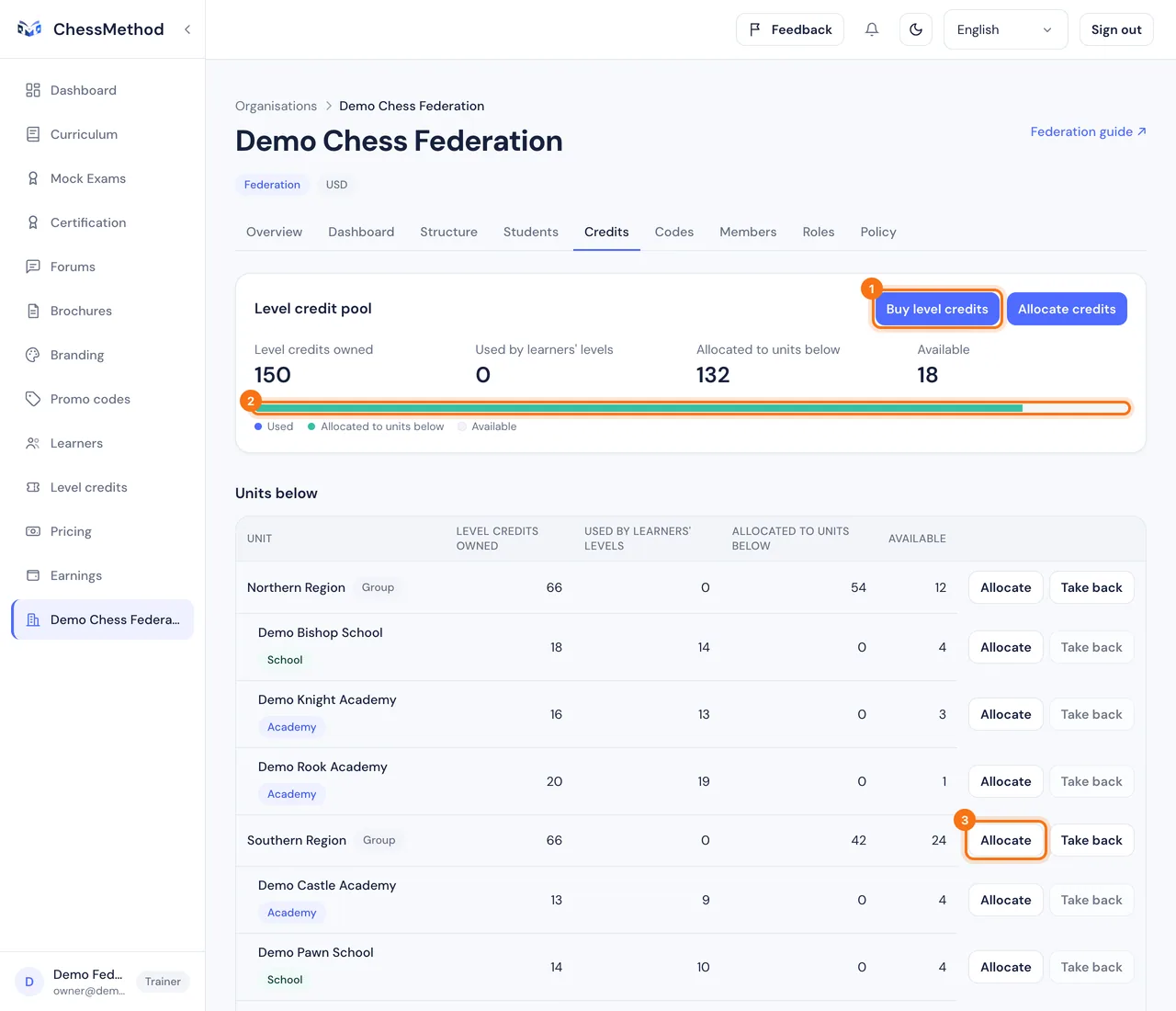
- Four numbers. A pool shows Level credits owned, Used by learners' levels, Allocated to units below and Available. Available is what is left after used and allocated credits.
- Top-down. You buy at the federation, allocate credits to groups, and groups allocate to academies and schools. A learner's level always draws on their own academy or school.
Buy level credits by card
- Open the Credits tab of the unit that should receive the credits (usually the federation) and press Buy level credits.
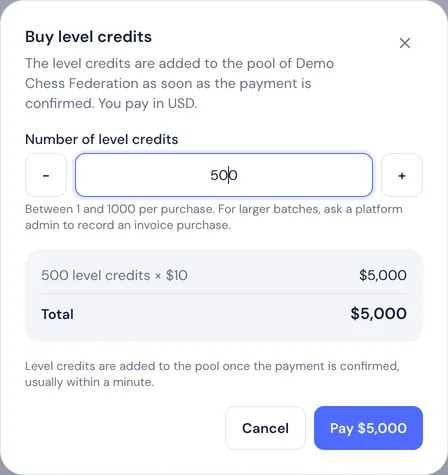
- Enter the Number of level credits: a whole number from 1 to 1000 per purchase. The order summary shows the price per credit and the Total.
- Press Pay. In INR a Razorpay window opens. In every other currency you go to Stripe Checkout and pay by card.
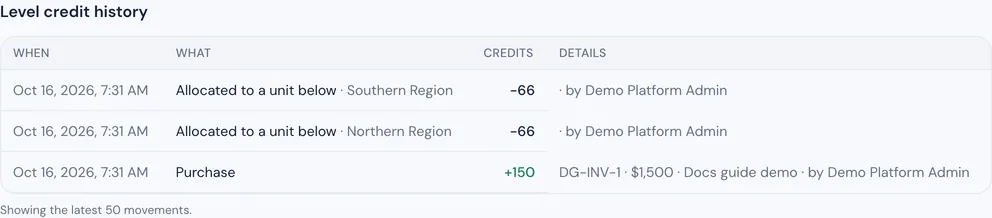
- When the payment is confirmed (usually within a minute) the credits appear in the pool and a Purchase row appears in the history. If you are told the payment is being confirmed, refresh the page in a moment.
- You pay in the unit's currency (its own, otherwise the nearest unit above it that has one).
- The price is the platform price per credit for that currency, multiplied by the quantity. There are no discount codes or bulk discounts on card purchases.
- The person buying needs the Buy level credits permission at that unit. Owners and admins have it by default. For a unit's own staff the federation's Own level credits policy must also be allowed (step 5).
- A full refund of a card purchase takes back only the credits still available in the pool. Credits already used or handed down stay, and ChessMethod reviews the difference with you.
Bigger batches, invoices and adjustments
For large or discounted batches, ChessMethod records a purchase against an invoice or bank transfer at an agreed contract price, and the credits go straight into your pool. Send ChessMethod the quantity, the amount, the currency and your invoice or transfer reference. ChessMethod can also grant or adjust credits, with a note that stays in your history. Your staff cannot do this themselves. Credits added this way show as Purchase, Credits granted or Credits adjusted in the history.
Allocate credits down and take them back
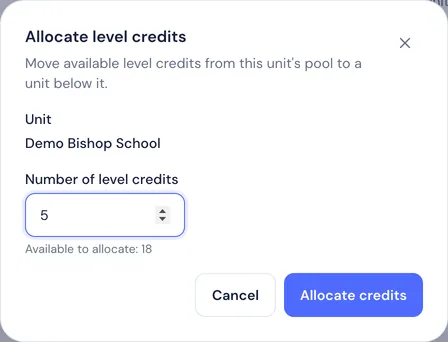
- In the Units below table, press Allocate on the row of a group, academy or school.
- Enter the number of credits. You can allocate up to what is Available in your own pool.
- To move unused credits back up, press Take back. You can only take back credits that you allocated from here and that the unit has not used.
When a pool reaches zero
- Learners are never blocked. They can still join the unit and still buy levels.
- With the Level credit limit on (the default), their coach earns no share of a level bought while the pool is empty, and free levels cannot be granted until credits arrive. A banner on the Credits tab says so.
- With the limit off, levels are sold and counted as usual, the balance goes below zero and the credits you add later cover it. A warning says when more credits are committed than the unit owns.
Step 7. Give every unit a join code and add discount codes
A join code is how learners get into an academy or school. A discount code lowers the price of levels for learners of a whole federation or group. They are two different tools.
Join codes (for academies and schools)
- Open the Codes tab of the academy or school.
- Press Create code. Leave the code blank to generate one, or choose your own. Optionally choose a Managing trainer: the coach who controls these learners' levels. If you choose one, tick the levels learners unlock at signup. As with a coach's code, you can also add a discount, dates or a usage limit.
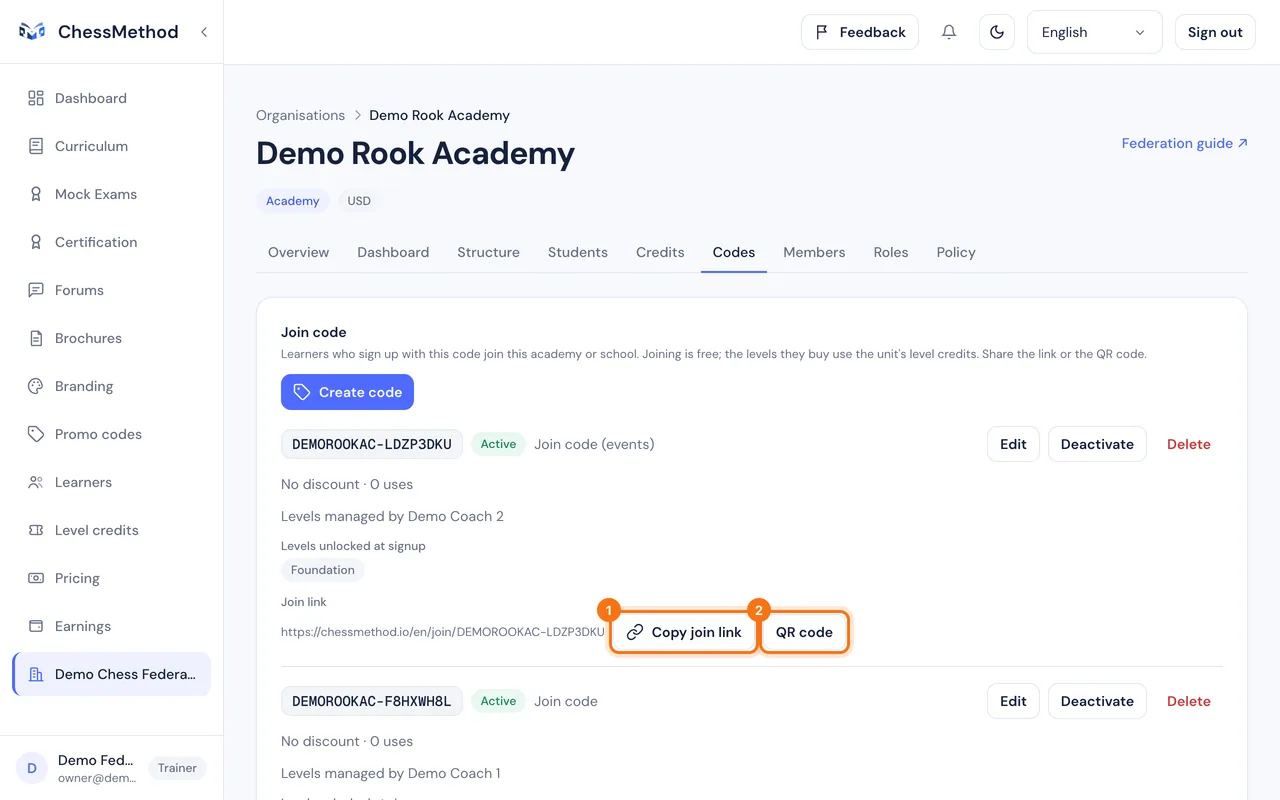
- Copy the join link or show its QR code. It looks like
chessmethod.io/en/join/YOURCODE. - A learner who signs up through the link is linked to the academy or school. Joining is free.
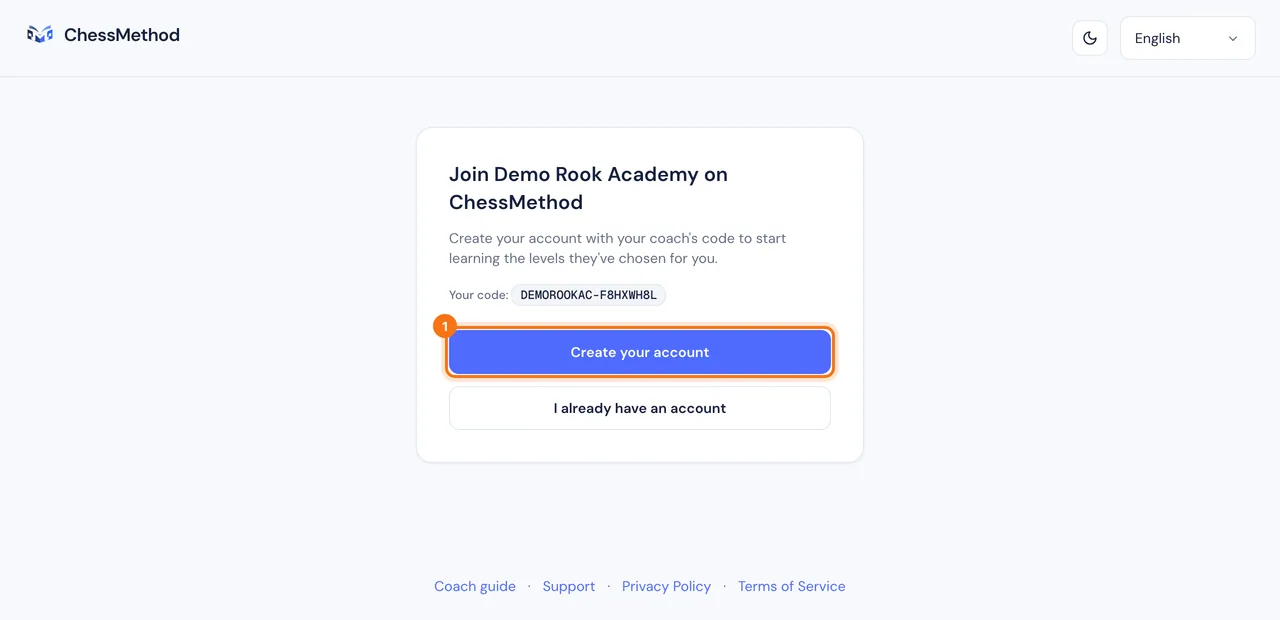
- With a managing trainer, the learner gets that coach as their level controller and sees the levels the code unlocks. Without one, the unit's allowed levels (step 5) decide what is visible.
- A unit can have several join codes, for example one for a tournament. The dashboard then counts signups for the unit and marks the codes as Shared.
- Only learners who sign up with a unit's code belong to the unit. A learner who signs up without one is an ordinary ChessMethod learner and does not appear in your dashboards.
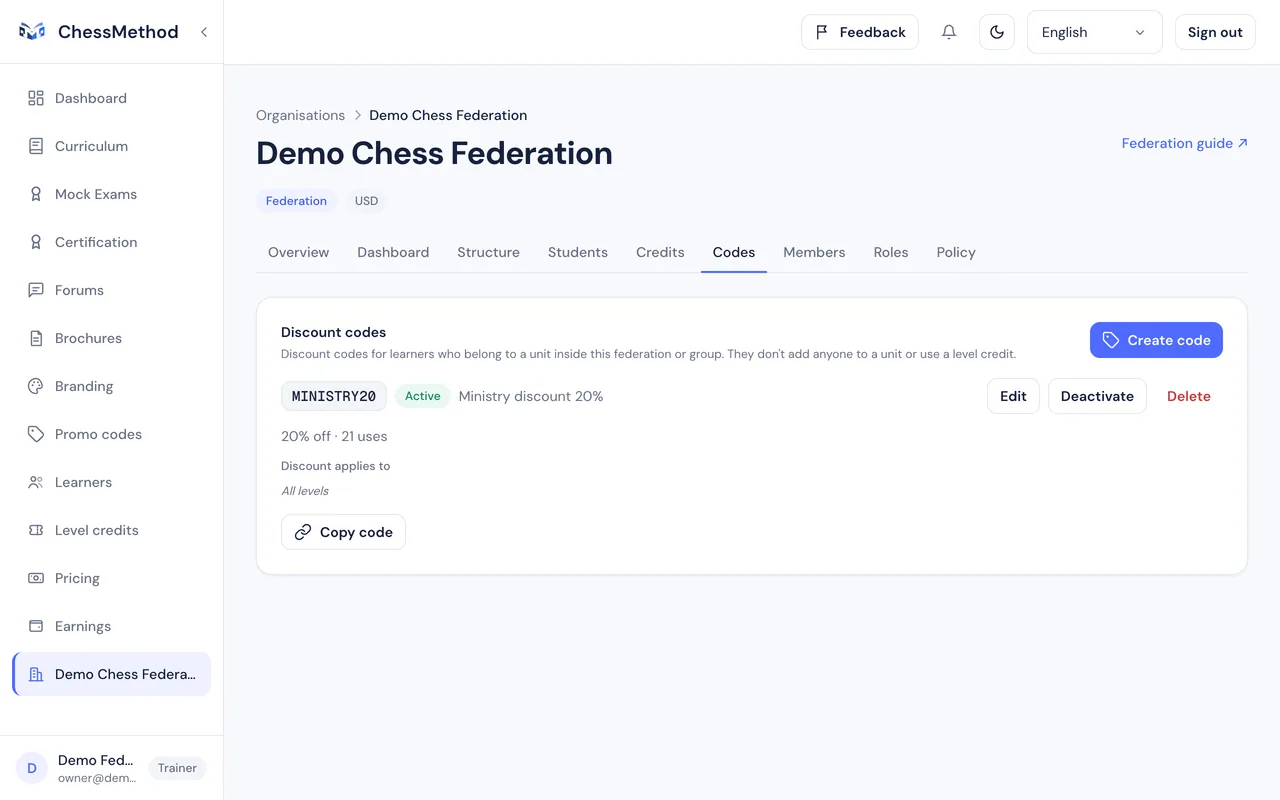
Discount codes (for the federation or a group)
- Open the Codes tab of the federation or the group.
- Press Create code, choose a percentage or a fixed amount and, if you want, the levels it applies to and the dates.
- Share the code. It works only for learners whose academy or school is inside that federation or group. It never adds anyone to a unit and never uses a credit.
Signup limits for classes
To stop abuse, ChessMethod limits how many accounts can be created in an hour. A learner signing up with the join code of one of your academies or schools may be one of up to 200 signups an hour from one network (and 300 an hour with the same code). Every other signup, including one with a discount code, is limited to 20 an hour from one network and 30 per code. A school enrolling a whole class on shared Wi-Fi should therefore use its join code, and spread very large events over more than one hour.
Step 8. See your learners and read the dashboards
The Students tab and the Dashboard tab answer different questions: who is in my units, and how are my units doing. Both cover the unit you are in and everything below it.
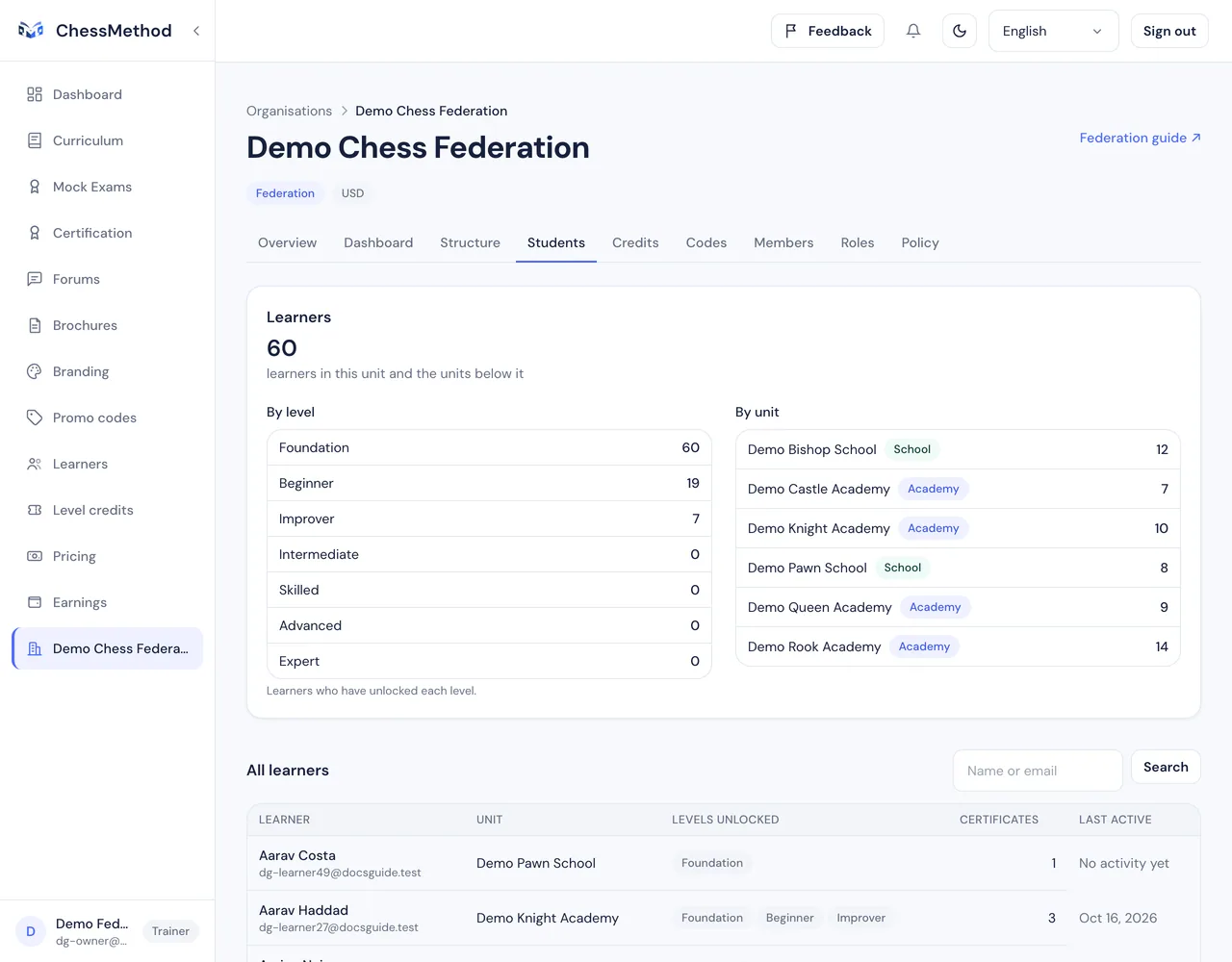
The Students tab
- Totals. Everyone who can open the tab sees the number of learners, split By level and By unit.
- The list. People with individual access also get All learners: name, unit, Levels unlocked, Certificates and Last active, with a search by name or email and pages. Opening a learner shows their profile, exam reviews and proctoring snapshots.
- Viewers. People with combined access see the totals and a note that names and results are not available to them.
The Dashboard tab
- Choose the Period: Month, Quarter, Year or Custom (up to five years). Every figure is compared with the equal period just before it.
- Narrow the report with Unit, Level and Trainer. The Trainer filter is only for people who may see members. Each row in the units table opens that unit's own dashboard.
- Read the sections: Key figures (learners, active learners, exams, certificates, pass rate, average score, units and trainers), Trends, Learners by level, Level credits, Units and top units, Join and discount codes and Revenue by currency.
- Every chart has a View as table option.

How the figures are counted
- Learners: learner accounts linked to an academy or school in the scope who joined before the end of the period. Active: at least one active day in the period.
- Exams taken: certification exams finished, passed or failed, by the day they were submitted. Expired or abandoned exams are not scored. Certificates: issued in the period, not counting revoked ones.
- Revenue: paid level purchases in the period, in the currency the learner paid. Currencies are never added together.
- The privacy rule that hides small numbers applies to the downloaded report (step 9) and, on screen, to people who can see counts but not individual learners, such as federation viewers. Owners and admins see exact numbers.
Step 9. Download the government report
The report turns the dashboard into a document you can hand to a ministry: a branded PDF and a CSV file for analysis, with a code that lets anyone verify it.
Download a report
- Open the Dashboard tab and set the period and the filters you want in the report.
- In Download report choose the Report language (English or العربية).
- Press Download PDF or Download CSV.
- You need the Export reports permission as well as access to the dashboard. The federation owner, admin and viewer roles have it. Each person can create 20 reports an hour.

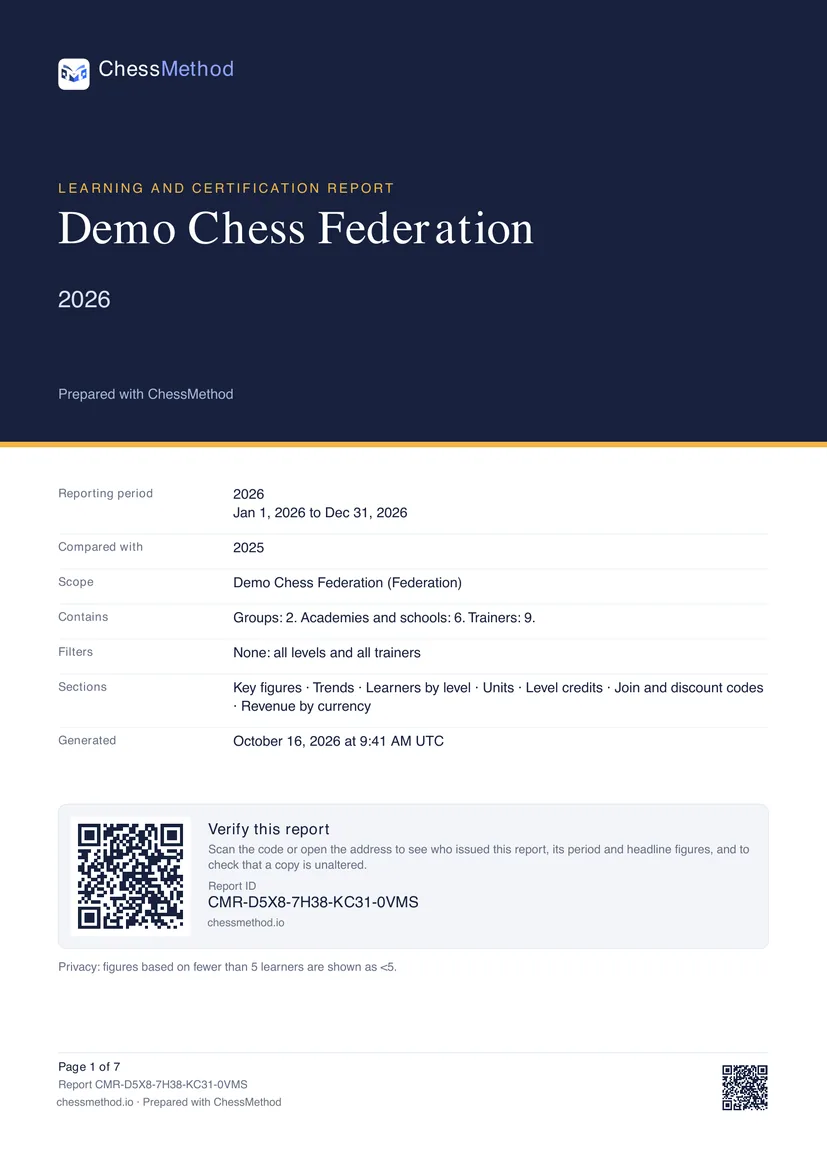
What is in the PDF
- A cover with the issuer, period, the period it is compared with, scope, filters, the date it was generated and a verification QR.
- Key figures with the change from the previous period, trend charts and learners by level.
- A comparison of the units below, top units, level credits, join and discount codes, and (only if the person downloading may see revenue) revenue by currency.
- The methodology: how every figure is counted, so the ministry can see the definitions.
- Every page carries the report ID and "Page n of N". The Arabic version is a true mirror image: columns, charts and page layout run from right to left.
What is in the CSV
One UTF-8 file that opens in Excel with a double click and shows Arabic names correctly. Every unit and code is listed (the PDF lists the largest). It always has the same ten columns, written in English, so pivot tables and scripts keep working; the report language selector only applies to the PDF. Money is written as plain numbers, per currency.
Verification
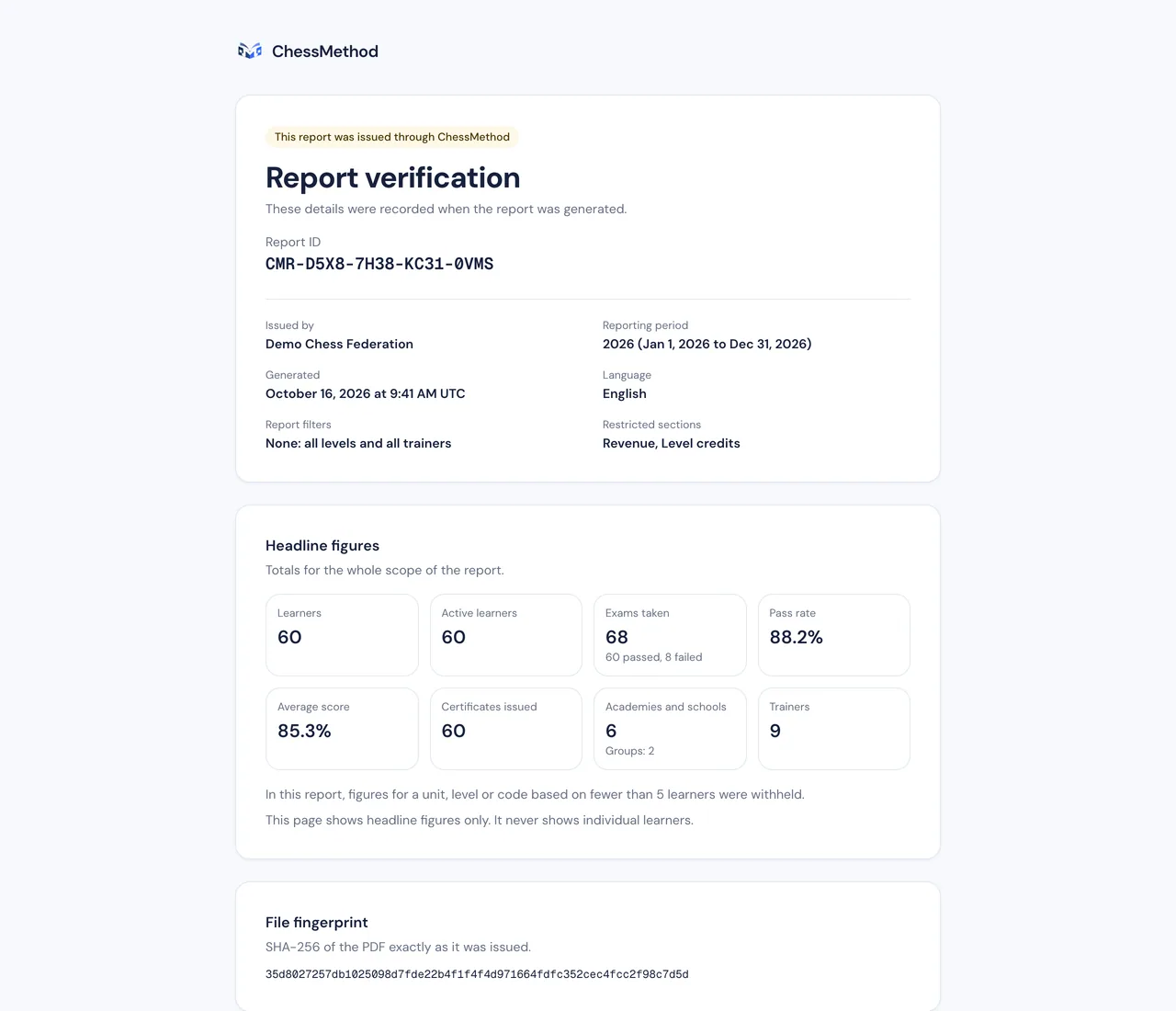
- Each PDF has a report ID like
CMR-XXXX-XXXX-XXXX-XXXXand a QR code on its first page. - Scanning it opens a public page,
/verify-report/…, that shows who issued the report, the scope and period, when it was generated and the headline figures of the whole scope. It never shows revenue, level credits, units, codes or any learner. - The page can check a copy: choose the PDF file you received and ChessMethod compares its fingerprint with the issued file. The file is read in your browser and is never uploaded. A PDF that was changed after it was issued does not match.
The small-number rule ("<5")
- Children can be identified from small numbers. If a report says that two learners in a small academy passed Level 4, anyone who knows that academy knows who they are.
- So any figure about fewer than 5 learners is not printed. You see <5 instead.
- A small unit: if an academy or a level has between 1 and 4 learners, every learner figure in its row shows <5, even a zero, and its rates and averages are left out. A zero next to "3 learners" would tell you that all three have no certificate.
- A single small count in a larger row (for example only 2 learners with a certificate) also shows <5. Rates and averages are hidden when fewer than 5 exams stand behind them.
- Totals for the whole report are always real. The key figures, the trend and the totals of the scope are never hidden.
- In the CSV a withheld value is written as <5 and its status is withheld.
What to ask your ministry
- Which period? A calendar month, quarter or year, or a custom range of up to five years (for example your academic year). Periods use whole UTC days.
- Which scope? The whole federation, or one report per region. Choose a group and download, or filter the dashboard by unit.
- Which language? English or Arabic for the PDF; the CSV uses the language you choose for its labels.
- Is a threshold of 5 acceptable? If the ministry needs another threshold, or no suppression at all for a closed audience, ask ChessMethod: it is a single platform setting.
- Which definitions? Check the methodology page against their own: what counts as an active learner, an exam taken, a certificate, and that revenue is per currency.
- Do they need revenue at all? It only appears when the person downloading may see it. The viewer role cannot.
- How will they verify it? Give them the report ID, the verification page or the QR code.
Step 10. What changes for coaches inside a federation
Coaches teach the way they always do on ChessMethod. The federation changes who pays for their access, who pays for credits and what they are allowed to set.
- No subscription. Anyone who holds a role in the federation tree skips the coach subscription screen. The federation covers their access. If they leave the federation, the normal rules apply again.
- The same tools. Coaches use the same Curriculum, Learners, Branding and Earnings pages described in the coach guide. They create an account through your invitation (step 4).
- Their learners. A coach's learners are the ones who sign up through a join code that names them as Managing trainer, or whom they invite. Each level those learners obtain uses a credit from the unit's pool, never from the coach's own balance.
- Prices. If you turned Own prices off, the coach's Pricing page is read-only and learners pay ChessMethod's default price. Otherwise the coach sets prices as usual (step 5).
- What they see of the unit. A coach with the Trainer / teacher role sees their own learners. Only roles with individual access see every learner in the unit.
How coaches are paid
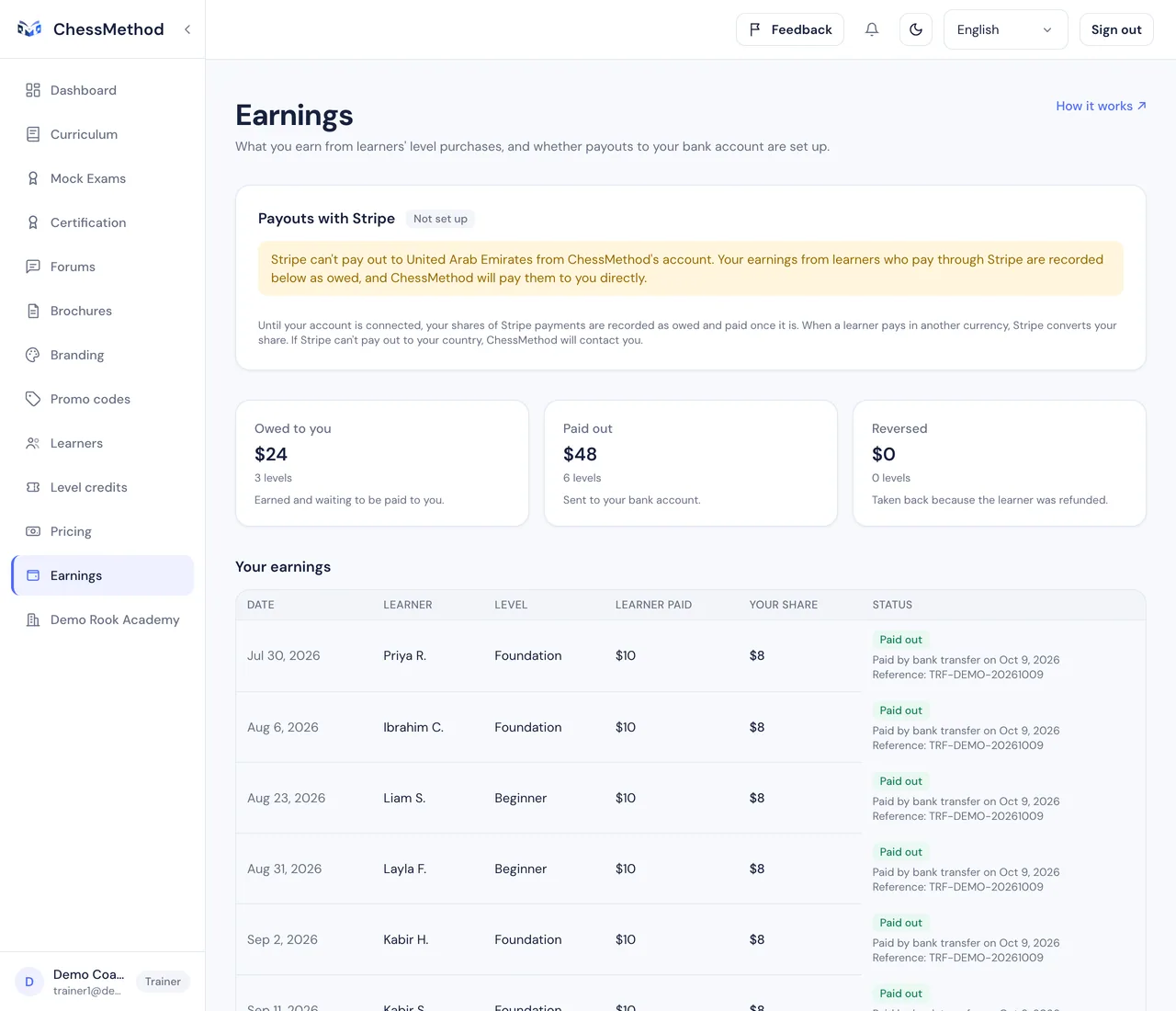
- A share of every level. On each level a coach's learner buys, the coach earns the platform share (80% by default, or the rate ChessMethod agreed with that coach). It is recorded on the coach's Earnings page. The federation does not receive a share today.
- With a payout account. Learners who pay in INR are paid through Razorpay once ChessMethod has linked the coach's account. Learners who pay in other currencies are paid through Stripe once the coach has set up payouts on Earnings, in countries where Stripe can pay out.
- Without one, by bank transfer. Where Stripe cannot pay a coach's country, or a payout account is not ready, the share is recorded as Owed and ChessMethod pays it by bank transfer and records it. The Earnings page then shows the row as Paid out, with Paid by bank transfer on the date and the bank reference.
- Refunds. A fully refunded level cancels a share that was not yet paid and returns the level credit to the pool.
Step 11. Checklist and troubleshooting
Your checklist
- Ask ChessMethod to create your federation and invite the owner (step 2)
- Accept the invitation and open the console (step 2)
- Build the tree of groups, academies and schools (step 3)
- Invite owners, admins, the ministry viewer and the coaches, and create any custom roles (step 4)
- Set the policies for levels, prices, codes, credits and certificates (step 5)
- Buy level credits or ask ChessMethod for an invoice, and allocate them to units (step 6)
- Give every academy and school a join code and share the link (step 7)
- Check Students and the Dashboard once learners have joined (step 8)
- Download your first report and check the small-number rule (step 9)
- Point your coaches to the coach guide (step 10)
Questions and fixes
The invitation says it can't be used.
An invitation is valid for 14 days, works once and only for the email address it was sent to. Check the message on the page: expired, used or withdrawn all mean you need a new one. If it says it was sent to a different address, sign in with the invited address.
It says a learner account cannot accept.
Staff invitations need a coach-type account. Create an account with Create an account on the invite page (it makes a coach account), or ask for the invitation to be sent to another email address.
I can't see a tab, or I get "page not found".
Your role does not cover that area. Tabs appear only for the permissions you hold, and a unit or learner you have no access to answers "not found". Ask an owner or admin to check your role in Members. You may also be looking at a unit that was archived.
A learner signed up but isn't in our dashboard.
Only learners who sign up with a unit's join code belong to that unit. A learner who signed up without the code is an ordinary ChessMethod learner. Ask them to use the join link when they sign up, or contact ChessMethod about an existing account.
The Buy level credits button is disabled.
Read the line beside it. It means one of three things: the federation has turned off Own level credits for this unit, the unit has no currency yet, or card payments in that currency are not switched on. In every case nothing is charged, and ChessMethod can record an invoice purchase.
A pool is empty. What happens to the learners?
Nothing is blocked. With the level credit limit on, a coach earns no share of levels bought while the pool is empty, and free levels cannot be granted. Allocate more credits from above or buy more.
Why does the report show "<5"?
To protect privacy, a figure about fewer than 5 learners is withheld. See the small-number rule in step 9. The totals for the whole report are always real.
Active learners look too low for earlier months.
Activity is counted from the day ChessMethod started recording it for learners, so earlier periods can show fewer active learners than there really were. Ask ChessMethod from which date activity is available for your federation.
Learners pay in a different currency than ours.
That is expected. The federation's currency is the currency you buy level credits in. Learners always pay in the currency of their own billing country.
Can an academy owner change their own policy?
No. A unit's policy is set by the level above it. Ask the federation or group staff.
We have an academy that already uses ChessMethod.
ChessMethod can add it to your federation with its coaches, learners and history, and move its unused level credits into its pool. Ask support@chessmethod.io (step 3).
Can an academy leave our federation?
Yes, but only ChessMethod can do it: ask support@chessmethod.io. When it leaves, your staff lose access to the academy immediately, its learners stay with the academy, credits you allocated to it that it has not used go back to your pool (the rest are the academy's own), its join codes are switched off and your discount codes stop applying to its learners. Credits already used stay used.
I removed someone, but they can still sign in.
Removing a member only removes the access their role gave them. Their ChessMethod account stays, so they can still sign in, but they no longer see your units.
Still stuck? Email support@chessmethod.io and include your federation's name and your account email.
Related guide
Coaches inside your federation will find everything about their own accounts, payouts, prices and learners in the coach guide.
Screenshots use a fictional "Demo Chess Federation" and test data.